Gateway Network Certificates and SSL
When a remote machine establishes an incoming connection, its server name is transmitted and appears in the Gateway Name field under Network > Gateway Network > Connections > Incoming Connections. However, no identity authentication is performed when the connection is created. The local system accepts the remote system ID without question. To perform identity authentication on a connection, you must use Secure Socket Layer (SSL) and certificates. By default, SSL is enabled.
When using the Gateway Network and Redundancy, SSL Certificates are automatically pushed from the redundant Master to the Backup.
Client Certificates
Client certificates are the certificates of peer Gateways that the current Gateway trusts when it is making outgoing connections. Client certificates live under:
$GATEWAY_HOME/data/gateway-network/client/security/pki/
When the Gateway makes an outgoing connection to a peer Gateway whose certificate is not yet trusted, the peer certificate (or its certificate chain if one is configured) is copied into:
$GATEWAY_HOME/data/gateway-network/client/security/pki/rejected/
This model allows users to configure the Gateway Network client to trust the peer Gateways on outgoing connections by moving the certificate on the file system from $GATEWAY_HOME/data/gateway-network/client/security/pki/rejected/ to $GATEWAY_HOME/data/gateway-network/client/security/pki/trusted/certs/. This file system change will be picked up immediately by the Gateway and the connection will be trusted when it attempts to reconnect again.
Server Certificates
Server certificates are the certificates of peer Gateways that the current Gateway trusts when it is handling incoming connections. Server certificates live under:
$GATEWAY_HOME/data/gateway-network/server/security/pki/
The Gateway Network config UI's Incoming Connections tab was made compatible with this new model so that incoming connection certificates may continue to be approved, denied, or deleted there.
If you are using your own CA to sign Gateway Area Network certificates, add the CA public key to:
$GATEWAY_HOME/data/gateway-network/server/security/pki/trusted/certs/
Denying a Certificate
To deny a certificate, navigate to Network > Gateway Network > Connections > Incoming Connections. The certificate three dot menu dropdown displays Deny and Delete options. If you select Deny, the connection that has been using that certificate will no longer be allowed to connect. You can select Delete for certificates that are no longer in use. Keep in mind that if you delete a certificate, and a remote machine is still using that certificate, it will reappear on the Certificates page. In this case, you must navigate to the remote Gateway and delete its outgoing connection. Then, you can permanently delete the certificate from the Certificates page.
Regenerating Gateway Network Certificates
Ignition generates a self-signed certificate for the Gateway Network on start up if no existing certificate is found. These self-signed certificates have a lifespan of 10 years. Unlike trusted certificates, self-signed certificates cannot be reuploaded and replaced. Regenerating the certificates creates a new certificate with an expiration date set for ten years from the date the certificate is regenerated. If you need to regenerate a self-signed certificate, remove the %IgnitionInstallationDirectory%\data\config\local\ignition\gateway-network\keystore.pfx file and restart the Gateway. The certificate will need to be trusted again by all other Gateways that initially trusted the expired certificate.
Setting Up Your Own Gateway Network Certificate
You can add your own certificates for incoming GAN connections by creating a metro-keystore.pfx file using your own CA. To begin, you'll need Java JDK and OpenSSL installed. A majority of this process will be performed in a command window starting with the Gateway's runtime JRE cd "<Ignition Home Folder>/lib/runtime/jre-<OS Type>/bin", where <Ignition Home Folder> is the path to your Ignition installation and <OS Type> is the OS you're using, such as:
- aarch64
- mac
- win
Using the Keytool Utility
The keytool utility allows you to create a new password protected Java keystore and generate the certificate signing request (CSR). Follow secure practices when creating your new password.
The examples included in this section utilize temporary locations for ease of displaying more generic file paths, but it is recommended to use a permanent location. Creating a tmp location isn't standardized across operating systems, and there is a risk of automatic removal on a restart.
Creating a Keystore
To begin, you'll need to create a Java keystore that is a password protected repository with a private key and signed client certificate. The example command below will create a Java keystore named metro-key that contains a self-signed certificate valid for 365 days. Your inputs may vary based on your needs.
keytool -genkey -alias metro-key -keyalg RSA -keysize 2048 -validity 365 -keystore "C:\tmp\gan-cert\new-metro-keystore.pfx"
The keystore values are populated based on Ignition defaults. For example, the first and last name field, often referred to as Common Name, defaults to <hostname>:<gan port>. Ignition does not validate Common Names or Subject Alternative Names (SAN) at this time. Certificate trust is handled only via explicit trust of a certificate or CA Root.
Creating a Certificate Signing Request
The following example command will create a CSR. You will want to update or remove values as you see fit. For instance, while adding the -ext parameters is good practice, it is not necessary for a certificate to function properly in Ignition. Note that if you want your certificate signed by a Certificate Authority (CA), additional steps are needed. You may need to show proof of ownership of the domain before a certificate will be created. Refer to the Secure Communications SSL/TLS page for more information.
keytool -certreq -alias metro-key -file "C:\tmp\gan-cert\metro.csr" -keystore "C:\tmp\gan-cert\new-metro-keystore.pfx" -ext SAN=dns:test.internal,ip:127.0.0.1,uri:https://test.internal/metro
Importing Signed Certificates
After you've sent the metro.csr file to a CA authority, the authority will process it and return signed certificates. These signed certificates need to be added into the Java keystore created above, in the order of root-ca.crt, intermediate.crt, and new-metro-cert.crt. Before adding, make sure you backup and rename the original GAN keystore to the new keystore.
cd "C:\Program Files\Inductive Automation\Ignition\data\config\local\ignition\gateway-network\keystore"
mv .\metro-keystore.pfx metro-keystore.orig
cp "C:\tmp\gan-cert\new-metro-keystore.pfx" "C:\Program Files\Inductive Automation\Ignition\data\config\local\ignition\gateway-network\keystore\metro-keystore.pfx"
keytool -import -trustcacerts -alias root -file "C:\tmp\gan-cert\root-ca.crt" -keystore "C:\Program Files\Inductive Automation\Ignition\data\config\local\ignition\gateway-network\keystore\metro-keystore.pfx"

keytool -import -trustcacerts -alias INTER -file "C:\tmp\gan-cert\intermediate.crt" -keystore "C:\Program Files\Inductive Automation\Ignition\data\config\local\ignition\gateway-network\keystore\metro-keystore.pfx"

keytool -import -trustcacerts -alias metro-key -file "C:\tmp\gan-cert\new-metro-cert.crt" -keystore "C:\Program Files\Inductive Automation\Ignition\data\config\local\ignition\gateway-network\keystore\metro-keystore.pfx"
File Modifications
A few more steps may be required depending on your setup to verify all necessary information is accessible:
- Update the
data/ignition.conffile to use the new metro keystore password:
wrapper.java.additional.7=-Dmetro.keystore.password=<newPassword> - If the CA signing your certificate is from an internal source, you will need to place the public root certificate in
/data/certificates/supplemental.
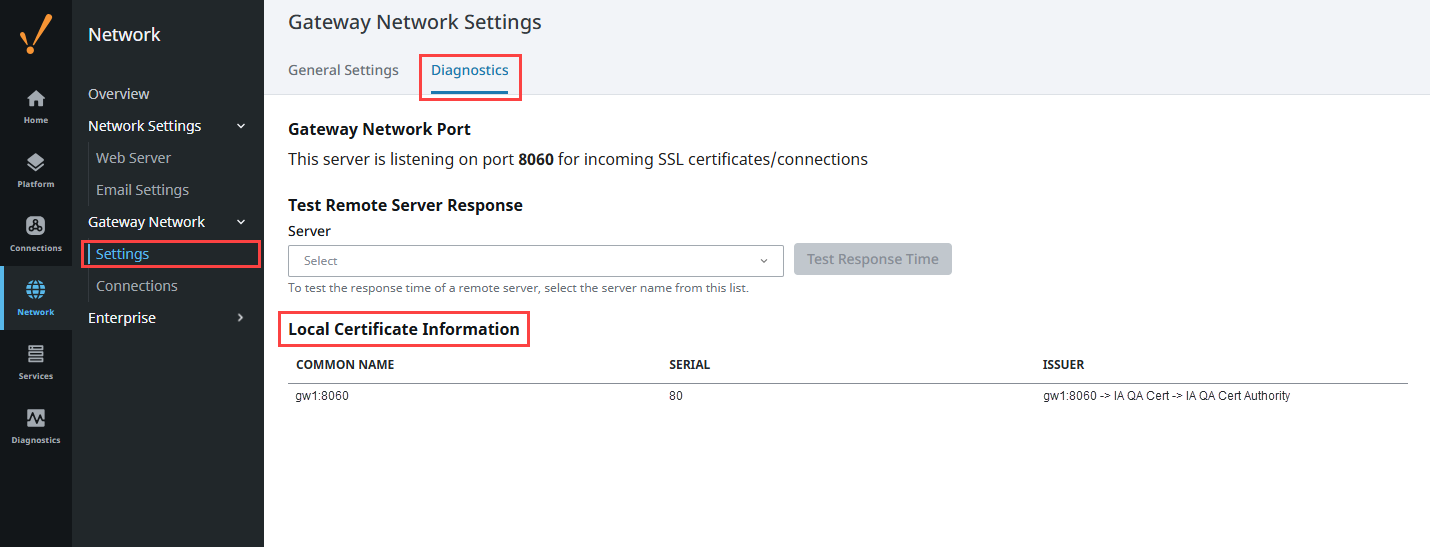
Once all certificates are signed and configuration is complete, you can restart your Gateway and then navigate to Network > Gateway Network > Settings to access the Diagnostics tab and confirm the local certificate information.