DB Table Historian Provider

The DB Table Historian Provider acts as a bridge between tables in a database connection and the Historian module, mapping columns in the tables as available Tags, allowing historical tag queries to access the content of the table. Usually historical tag queries can interact only with tables created by the Historian. Thus, a table created with a Transaction Group, or by some other means (manually creating the database tables, tables generated by third party systems, etc) couldn't be accessed via things like a Tag History binding. The DB Table Historian Provider solves this problem.
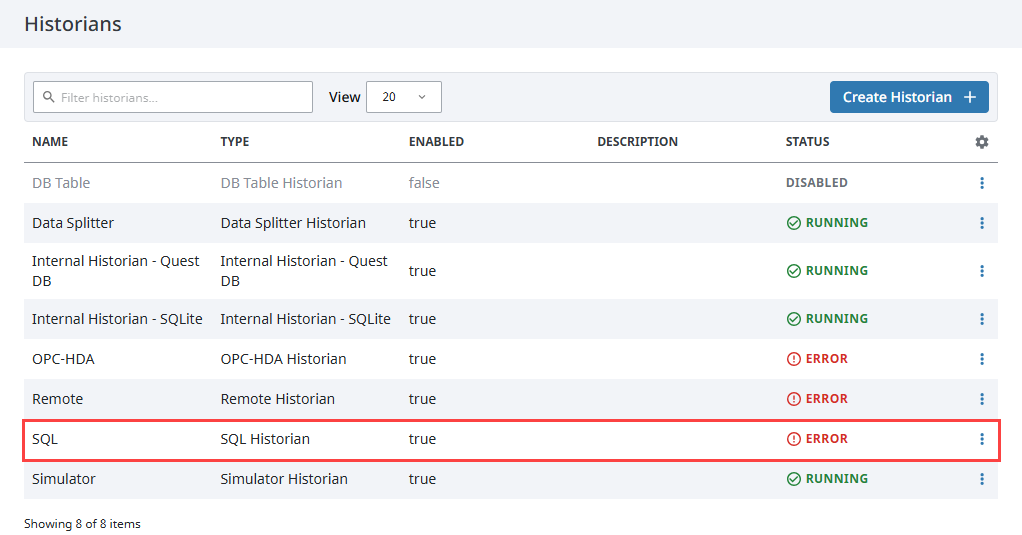
Utilizing the DB Table Historian Provider requires a SQL Historian, which is the type of historical provider that depends on a configured Database connection. You can check the type of any History Provider under the Services section of the Gateway, on the Historians > Historians page.
Configuring a DB Table Historian Provider
-
On the Gateway, go to Services > Historians > Historians.
-
Click Create Historian.
-
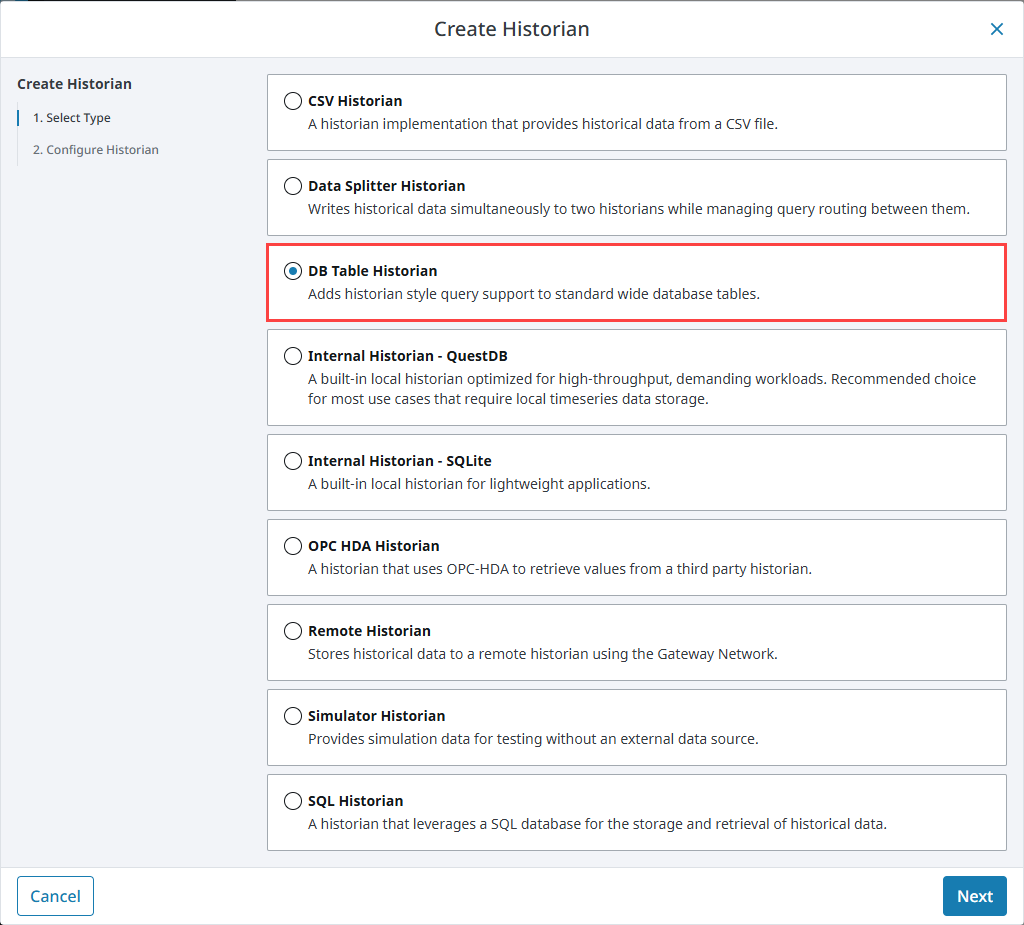
Select DB Table Historian, then click Next.
-
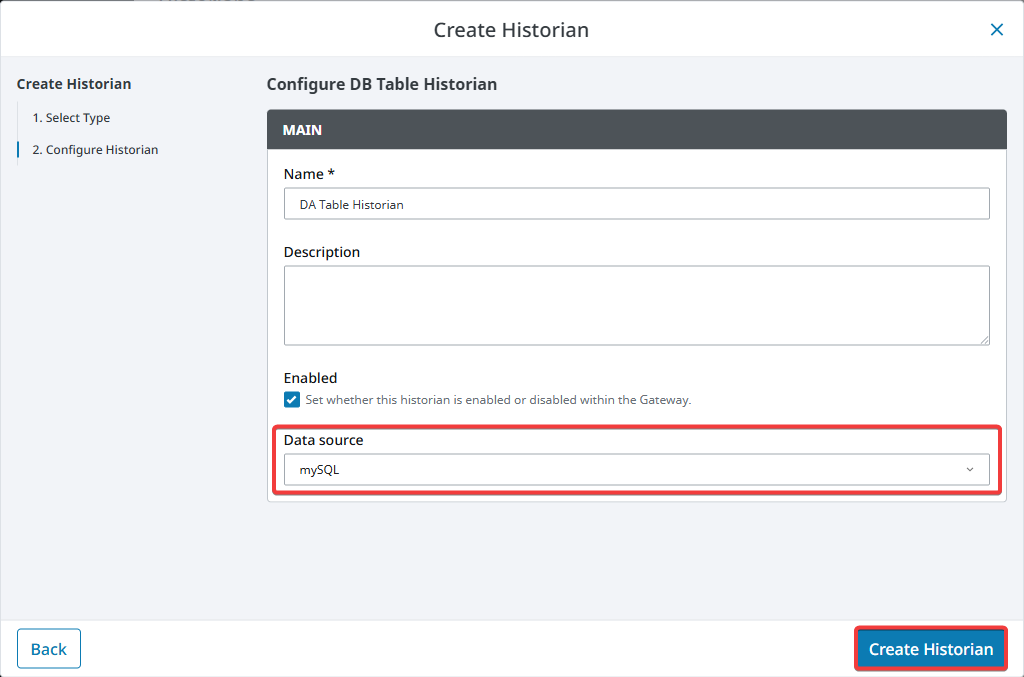
Enter a name for the provider.
-
In Data Source, select the SQL Historian provider that contains the target tables.
-
Click Create Historian.
Retrieving Records
Once configured, the DB Table Historian will expose tables from the selected data source to tag history query tools like the Vision Tag History binding or the Perspective Power Chart.
For example, a Transaction Group might generate a table like this in the database schema:
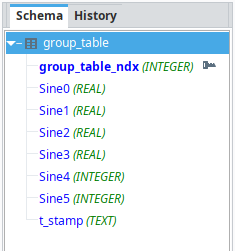
In this example, the group_table contains several columns (e.g., Sine0–Sine5 and t_stamp) that represent recorded tag values and timestamps. These columns can be queried just like standard historical tag data.
Then, we can use a Perspective Power Chart to detect the table and expose the columns as tags.
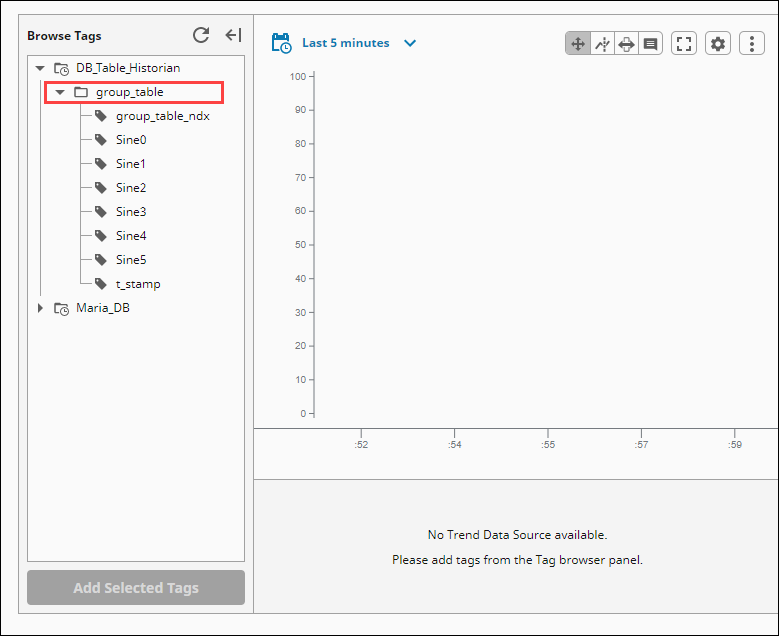
Here, the group_table is detected under the DB_Table_Historian provider. Each column appears as a selectable tag that can be added to the chart for historical analysis, just like standard historian data sources.
Path Components
Historical tag paths for the DB Table Historian are made up of several components. These paths allow Ignition to interpret database tables as if they were standard historical tag records.
Each component in the path defines how the system locates and interprets the relevant data within the target table.
| Component | Description |
|---|---|
| histprov | Name of the DB Table Historian provider. |
| table | Table name in the data source. |
| column | Column in the table to query. |
| timestamp | Column to use for timestamps. Defaults to t_stamp if not specified. |
| keycolumn | Column for basic filtering. Only one keycolumn per path. [Optional] |
| keyvalue | Value to filter by in keycolumn. Must be an integer. [Optional] |
For more advanced filtering, use a Named Query instead of a tag history path.
Here’s an example path:
histprov:DB_Table_Historian:/table:group_table:/column:Sine1:/timestamp:my_timestamp_column
Example: Displaying Custom Historian Data in a Power Table
You can use the DB Table Historian provider to expose historical data stored in a standard SQL table. This example shows how to configure a Vision Power Table to show that data using a Tag History binding.
-
Create a table in your database to hold historical values:
CREATE TABLE machine_values (
  machine_id INT,
  process_value INT,
  time DATETIME
);
Insert sample data:
INSERT INTO machine_values (machine_id, process_value, time) VALUES
(1, 111, '2020-09-10 21:44:35'),
(1, 100, '2020-09-10 21:44:41'),
(2,  22, '2020-09-10 21:45:01'),
(2, 222, '2020-09-10 21:45:15');
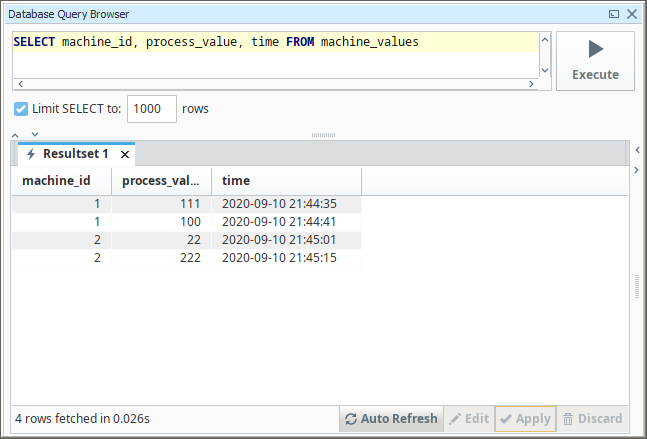
You can view the table and its contents using your database’s query browser. The following image shows the result in a typical SQLite browser interface, displaying the machine_values table and its data:
-
In the Designer, add a Power Table component to your window.
-
Navigate to the
dataproperty and click the Binding icon. -
Choose Tag History as the binding type.
-
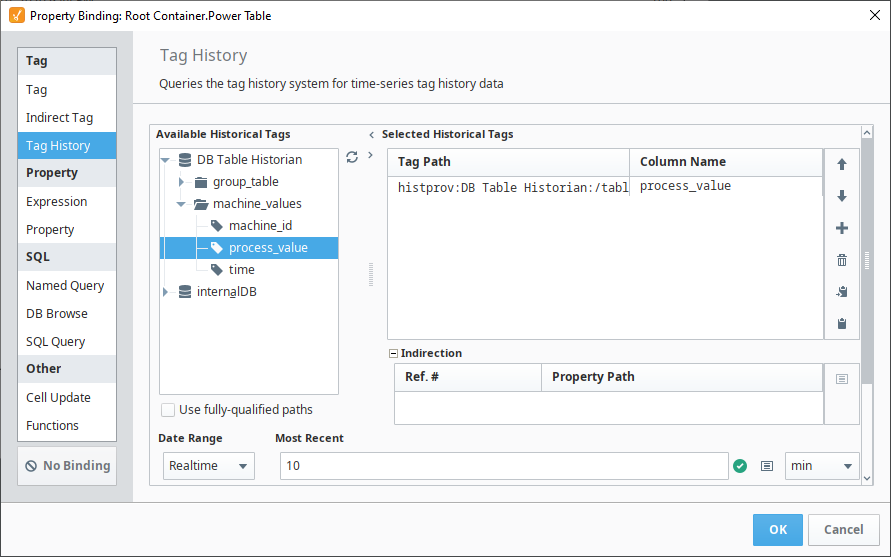
Use the Browse Tags button to select your historical tag. If the provider is correctly configured, you'll see columns from your database listed as tags.
-
Use tag history path syntax to refine the query. For example, the following paths tell the historian where to find values, which column represents time, and what rows to include.
-
Basic path for a column:
histprov:DB Table Historian:/table:machine_values:/column:process_value -
Specify a timestamp column:
histprov:DB Table Historian:/table:machine_values:/column:process_value:/timestamp:time -
Filter to rows where
machine_id = 1:histprov:DB Table Historian:/table:machine_values:/column:process_value:/timestamp:time:/keycolumn:machine_id:/keyvalue:1
-
-
After selecting your tag and setting the options, click OK to apply the binding.
The Power Table will now display the historical process_value data for machine_id = 1.