SECS/GEM Messages
SECS Message Basics
The SECS-II standard defines how information is exchanged between equipment and a host using messages. Messages are organized into categories called streams, which contain specific messages called functions. Each SECS message is identified by a stream and function number, written as S#F#. For example, S1F13 refers to Stream 1, Function 13.
Requests and Responses
SECS messages are exchanged as requests and responses:
- Request (primary message): Originates from the host, which in Ignition is the Gateway. Request messages use odd-numbered functions, such as S1F1.
- Response (secondary message): Originates from the equipment in reply to a request. Response messages use even-numbered functions, such as S1F2.
A request may expect a single response or no response, depending on the message definition. This request-and-response pattern forms the basis of SECS/GEM communication.
SECS Message Format
SECS messages are transmitted using binary SECS protocols. Within Ignition, messages are represented as structured JSON objects for scripting and configuration purposes. Each message includes a header that specifies the stream, function, and whether a response is expected. Messages may also include a body containing one or more data items, which can be nested lists.
SECS Message Example
The following example shows an S1F11 request represented as JSON within Ignition:
{
   "header":{
      "doc":"Status Variable Namelist Request",
      "stream":1,
      "function":11,
      "reply":true
   },
   "body":[
      {
         "doc":"SVID, Status Variable ID",
         "format":"U4",
         "value":4
      }
   ]
}
To send this request from a script, use the sendRequest function. This function returns a transaction ID, which is used to retrieve the corresponding response.
body = [{"format": "U4", "value": 4}]
transactionID = system.secsgem.sendRequest("S1F11", True, body, "Equip4")
A response to the above request would look similar to the following:
{
  "header": {
    "doc": "Status Variable Namelist Reply",
    "stream": 1,
    "function": 12,
    "reply": false
  },
  "body": [
    [
      {
        "doc": "SVID, Status Variable ID",
        "format": "U4",
        "value": 4
      },
      {
        "doc": "SVNAME, Status Variable Name",
        "format": "A",
        "value": "RandomBinaryData"
      },
      {
        "doc": "UNITS, Units Identifier",
        "format": "A",
        "value": "B"
      }
    ]
  ]
}
Responses are retrieved using the getResponse function.
response = system.secsgem.getResponse(transactionID, "Equip4")
print response
This request-and-response pattern forms the foundation of SECS/GEM communication. In addition to retrieving responses through scripting, messages can also be processed using tags or Message Handlers.
To send or receive a specific SECS message, the corresponding stream and function must be defined in the equipment connection’s SDL file.
SECS Messages through Tags
SECS messages that contain data can be configured to generate tags. This is commonly used for recurring data, such as trace data returned in S6F1 messages. When enabled, tags are created automatically under the SECS/GEM Realtime Tag Provider for the equipment connection. These tags are read-only and do not support Tag History, alarming, or manual editing.
Realtime tags are not persistent. If the Gateway restarts, the tags must be recreated.
To enable tag creation for a message, the message definition in the SDL file must be configured accordingly. The default SDL file is preconfigured to generate tags for S6F1 messages.
[
   {
      "doc":"TRID, Trace Request ID.",
      "format":"U4",
      "value":1
   },
   {
      "doc":"DSPER, Data sample period.",
      "format":"A",
      "value":"000002"
   },
   {
      "doc":"TOTSMP, Total Samples",
      "format":"U4",
      "value":10
   },
   {
      "doc":"REPGSZ, Reporting Group Size",
      "format":"U4",
      "value":1
   },
   [
      {
         "doc":"SVID Status Variable ID",
         "value":1,
         "format":"U4"
      },
      {
         "doc":"SVID Status Variable ID",
         "value":2,
         "format":"U4"
      },
      {
         "doc":"SVID Status Variable ID",
         "value":3,
         "format":"U4"
      }
   ]
]
Tags Example Using the Simulator
This example configures the S2F14 message to create tags that can be viewed in the Tag Provider. It assumes the equipment connection is connected to a simulator and is using the default SDL file. To capture other messages as tags, the SDL file must be configured to allow tag creation. In this example, the SDL file is updated so that S2F14 generates tags.
-
On the Gateway, go to the Connections section and navigate to SECS/GEM > Equipment.
-
Expand the three dots menu for the equipment connection and select Edit File under SDL File.
-
Locate the S2F14 message in the list.
- Add SQLTags as an Auto type object with a value of true directly under the S2F14 root.
- Create an array called CommonID directly under the S2F14 root.
- Add 0: ECV to the CommonID array as an Auto type object.
-
Save the SDL file and restart the equipment connection.
-
After the equipment connection is reestablished, send an S2F13 message with the body shown below:
S2F13 Body[
{
"doc":"ECID, Equipment Constant ID",
"format":"U4",
"value":200
},
{
"doc":"ECID, Equipment Constant ID",
"format":"U4",
"value":201
},
{
"doc":"ECID, Equipment Constant ID",
"format":"U4",
"value":203
},
{
"doc":"ECID, Equipment Constant ID",
"format":"U4",
"value":205
},
{
"doc":"ECID, Equipment Constant ID",
"format":"U4",
"value":206
},
{
"doc":"ECID, Equipment Constant ID",
"format":"U4",
"value":207
}
]
SECS Messages through Message Handlers
Instead of generating tags, SECS messages can invoke a custom Python script using a Message Handler. The Message Handler must have the onSecsGemRealtimeUpdate name, though it can be specified for both the Client Event Scripts and the Gateway Event Scripts. Within the Message Handler, the SECS message will pass information into the payload object.
Message Handlers can only process messages that are allowed to originate from equipment, such as S6F1. Messages that originate only from the host cannot trigger Message Handlers.
| Payload Key | Description |
|---|---|
| CommonID | The identifier used to associate related messages. |
| Equipment | The name of the equipment connection. |
| Direction | Indicates whether the message was sent or received. |
| RequestResponse | Indicates whether the message is a request or response. |
| TxID | The transaction identifier. |
| Reply | Indicates whether the message expects a reply. |
| Message | The message contents represented as JSON. |
This script can handle the message in any way such as storing data in the database or writing to tags. The example below will take the information and create a logger object with it that will then be printed to the console.
# This message handler is very simple in that it will create a logger with the SECS message data that prints to the console.

commonID = payload['CommonID']
equipment= payload['Equipment']
direction = payload['Direction']
reqResp = payload['RequestResponse']
txId = payload['TxID']
reply = payload['Reply']
message = payload['Message']

msg = "CommonID=" + commonID
msg += ", Equipment=" + equipment
msg += ", Direction=" + direction
msg += ", RequestResponse=" + reqResp
msg += ", TxID=" + str(txId)
msg += ", Reply=" + str(reply)
msg += ", Message=" + message
logger = system.util.getLogger("SECSGEM.Gateway.onSecsGemRealtimeUpdate")
logger.info(msg)
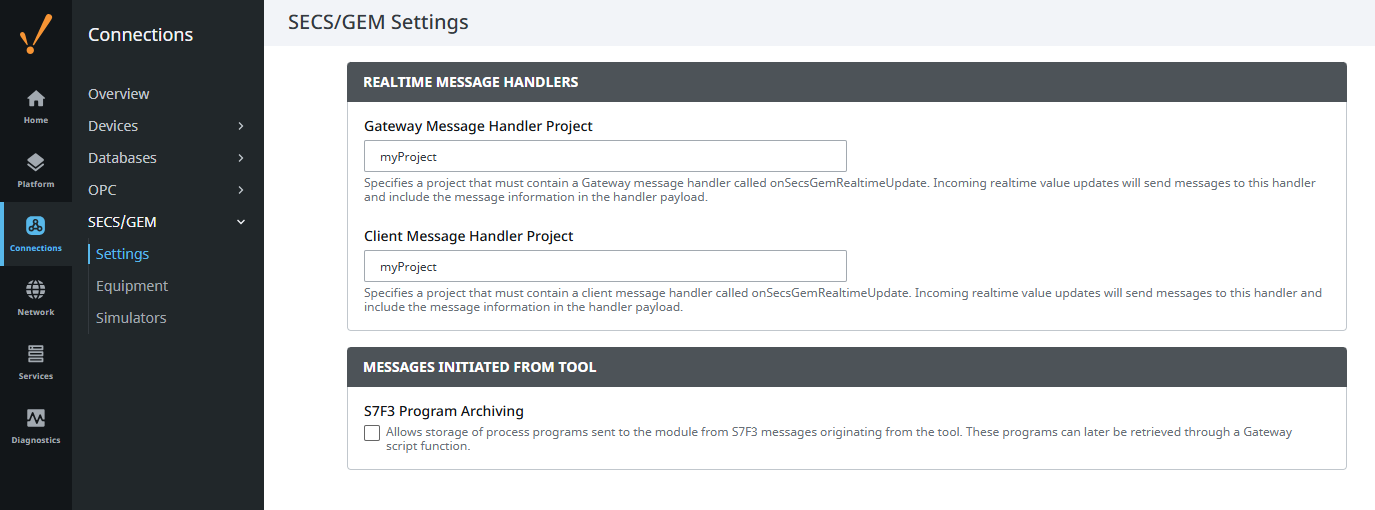
Once an onSecsGemRealtimeUpdate Message Handler has been specified, it needs to be specified within the Gateway. On the Gateway, navigate to Connections > SECS/GEM > Settings to access the SECS/GEM Settings page and specify which project holds the Gateway Message Handler and which project holds the Client Message Handler. These can be the same project or different projects.
Message Handler Example Using the Simulator
This example configures the S2F14 message to call a Gateway Message Handler. It assumes the equipment connection is connected to a simulator and is using the default SDL file. To capture messages using onSecsGemRealtimeUpdate, the SDL file must be configured to allow the message to be routed through the Message Handler. In this example, the SDL file is updated so that S2F14 is processed by the Message Handler.
-
Create a Gateway Message Handler called onSecsGemRealtimeUpdate.
-
On the Gateway, go to the Connections section and navigate to SECS/GEM > Settings.
-
Specify the project that contains the Gateway Message Handler in the Gateway Message Handler Project setting.
-
Navigate to SECS/GEM > Equipment.
-
Expand the three dots menu for the equipment connection and select Edit File.
-
Locate the S2F14 message in the list.
- Add realtime as an Auto type object with a value of true directly under the S2F14 root.
- Create an array called CommonID directly under the S2F14 root.
- Add 0: ECV to the CommonID array as an Auto type object.
-
Save the SDL file and restart the equipment connection.
-
After the equipment connection is reestablished, send an S2F13 message with the body shown below:
S2F13 Body[
{
"doc":"ECID, Equipment Constant ID",
"format":"U4",
"value":200
},
{
"doc":"ECID, Equipment Constant ID",
"format":"U4",
"value":201
},
{
"doc":"ECID, Equipment Constant ID",
"format":"U4",
"value":203
},
{
"doc":"ECID, Equipment Constant ID",
"format":"U4",
"value":205
},
{
"doc":"ECID, Equipment Constant ID",
"format":"U4",
"value":206
},
{
"doc":"ECID, Equipment Constant ID",
"format":"U4",
"value":207
}
]
Custom SECS Message Response Handlers
For messages that expect a response, SECS/GEM automatically sends a response based on the SDL configuration. You can override this behavior by creating a custom Message Response Handler, which allows responses to be generated entirely through Python scripting. Using the data given to us in the payload, the Message Handler can then manipulate it in any way before calling the system.secsgem.sendResponse function, which will send the response back to the equipment.
Only one custom response can be configured per stream and function for an equipment connection. Custom response handlers are supported for messages received over the SECS-I (serial) protocol.
| Payload Key | Description |
|---|---|
| Equipment | The name of the equipment connection. |
| TxID | The transaction identifier. |
| SystemBytes | The system bytes associated with the response. |
| Message | The message contents represented as JSON. |
To configure a custom response handler, open Connections > SECS/GEM > Equipment, expand the three dots menu for the equipment connection, and select Custom Responses. Each entry maps a stream and function to a Gateway Message Handler.
On the Message Response Handlers page, we can setup a link between the stream function response we want to intercept and which Message Handler will be used to handle it. Each Message Response Handler has the following settings.
| Setting | Description |
|---|---|
| Enabled | If true, the specified script message handler will be fired when the specified StreamFunction is encountered. |
| Intercept Stream Function | The SECS stream and function type of the message that will be intercepted. Use a value such as "S6F2" |
| Gateway Message Handler | The name of the script message handler that will create the SECS response message. This message handler must be created in a project to provide custom responses, and must be a Gateway Event Script message handler. |
| Project Name | The project that contains the script message handler specified above. |