Ignition's OPC UA Server
Ignition's OPC UA server, provided by the OPC UA module, allows an ignition installation to utilize Ignition's various device driver modules. In addition, with the module installed, OPC UA clients can connect to Ignition's UA server, exposing any connected devices to third party systems.
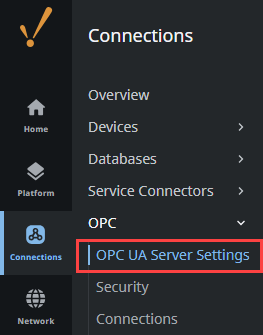
Settings for the server can be found under the Connections section of the Gateway Webpage. On the sidebar, locate OPC > OPC UA Server Settings.
Default Credentials
Ignition's OPC UA server does not initially support anonymous access, but can be configured to do so (see the settings table below). Authenticated connection require the following credentials:
- Username: opcuauser
- Password: password
New installations of Ignition will automatically create the user above, allowing the Gateway to initially connect as a UA client to its own UA server.
Connecting with UA Discovery
Ignition's OPC UA server is initially, and intentionally, difficult to discover on new installations. To aid with discovery attempts, a separate unsecured endpoint is available, allowing UA clients a means of finding the server. When attempting to discover the server, the endpoint URL should include "/discovery" at the end:
opc.tcp://<localhost>/discovery
OPC UA Server Settings
The tables below detail the General Settings tab on the Ignition's OPC UA Server Settings page. They'll only become available if the OPC UA module is installed on the Gateway.
Endpoint Configuration
| Setting | Description | Default Value |
|---|---|---|
| Bind Port | The port the UA server will bind to. | 62,541 |
| Bind Addresses | The address the server will bind to. If you want to expose the OPC UA server to external sources, you need to use 0.0.0.0 or the IP address of the computer. | localhost |
| Endpoint Addresses | A comma separated list of endpoint addresses that the UA server can be reached at. It is important that this is set to addresses that can be reached by any UA clients attempting to connect to the server. When entering addresses into this property, they can be just an IP address or hostname: 10.10.10.100 Alternatively, angled brackets can be used. When applied to an address, the server attempts to find the hostname, or resolve the value to as many addresses or hostnames as it can find. <10.10.10.100> | <hostname>,<localhost> |
| Security Policies | A comma separated list of acceptable security policies. Available policies are:
| Basic256Sha256 |
Authentication
| Setting | Description | Default Value |
|---|---|---|
| Anonymous Access Allowed | Specifies if UA clients are allowed to connect to this server anonymously. While false, client connections are required to authenticate with the server. | false |
| User Source | Which user source contains the initial user for authenticated access. Credentials for the initial user can be found above. | Attempts to use the 'opcua-module' user sources |
Advanced
| Setting | Description | Default Value |
|---|---|---|
| Expose Tag Providers | When enabled, Ignition Tag Providers will be exposed through the UA server, allowing third party UA clients to access tags in the provider. | false |
| Max Session Count | The maximum number of client connections to the UA server. | 100 |
| GDS Push Enabled | New in 8.3.5 When enabled, the server's certificate and trust list can be managed by an external GDS via the GDS push model. | false |
Redundancy
| Setting | Description | Default Value |
|---|---|---|
| Read-only When Inactive Node | When enabled, this server switches to a read-only state while its Gateway is the inactive node in a redundant pair. | false |
OPC UA Server Permissions
The Permissions tab allows users to set role permissions for access to devices and exposed tags. Each role will have the options for Browse, Read, Write, and Call.
Click the Add Role option to select or enter a role. Roles already created for the opcua-module user source will be available to select from the dropdown. You can also enter a new role here to assign permissions, but then you will need to navigate to the Platform > Security > User Sources Gateway page to create a role of same name for the permissions to be applied to the desired opcua-module users.
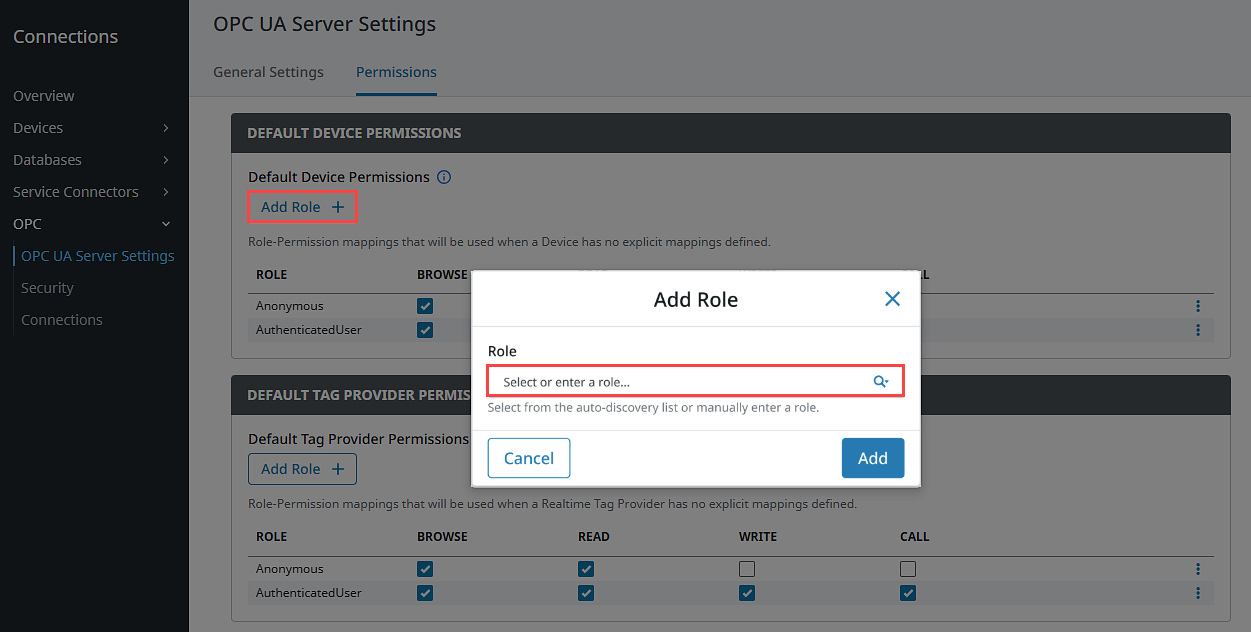
After the role is added to the Permissions list, check the access levels you want to apply. Make sure to click Save Changes at the top of the page after any permissions update. You can remove roles by expanding the three dots menu and selecting Remove.
Default Device Permissions
| Setting | Description |
|---|---|
| Default Device Permissions | Role-Permission mappings that will be used when a Device has no explicit mappings defined. Role Names must be unique. |
Default Tag Provider Permissions
| Setting | Description |
|---|---|
| Default Tag Provider Permissions | Role-Permission mappings that will be used when a Realtime Tag Provider has no explicit mappings defined. |
Tag Provider Permissions
| Setting | Description |
|---|---|
| Individual Tag Provider Permissions | Role-Permission mappings, specific to a selected Tag Provider, that will override any Default Tag Provider Permissions defined in the Default Tag Provider Permissions section above. After a Tag Provider is added, you can add permissions for it. |
Verifying Redundancy State with the OPC Quick Client
The OPC Quick Client can be used to verify which Gateway is currently active in a redundant Gateway pair by reading the OPC UA server's runtime status.
-
Open the Gateway and navigate to Connections > OPC > Quick Client
-
Expand Ignition OPC UA Server, then expand Server.
-
Locate ServiceLevel, then click the [R] (Read) icon to display the results at the top of the page.
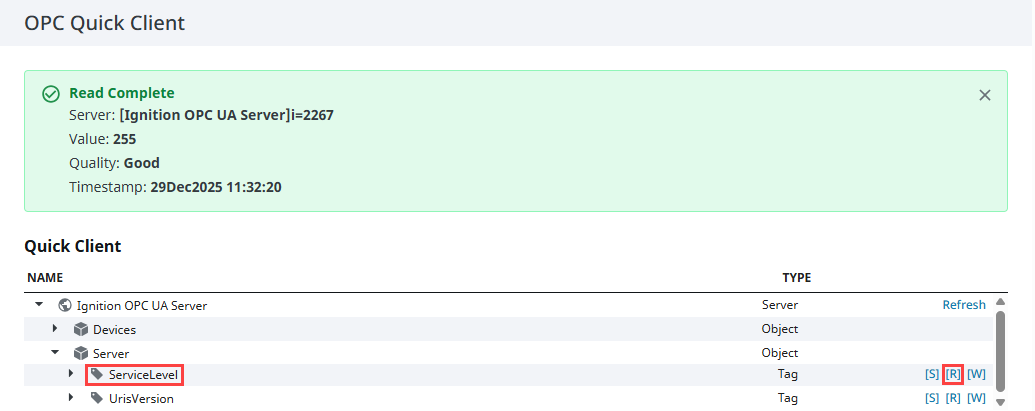
The ServiceLevel value indicates which Gateway is currently active. This value is read-only and reflects the current redundancy state.
| Service Level | Description |
|---|---|
| 255 | The OPC UA server is running on the master Gateway and is currently active. |
| 254 | The OPC UA server is running on the backup Gateway and is currently active. |
| 1 | The OPC UA server is inactive. |
In some network conditions, such as a temporary Gateway Network communication loss, both nodes may briefly report active values. This typically resolves once communication between the nodes is restored.
Troubleshooting a Faulted Connection to Ignition's OPC UA Server
You may occasionally run into issues with Ignition's OPC UA Server connection. In these situations, there are a few things you can check to diagnose your issue.
To troubleshoot your connection to Ignition's OPC UA Server, follow the steps below:
-
Go to the Server Settings page for Ignition's OPC UA Server. This page is located on the Gateway webpage Connections > OPC UA > Server Settings.
-
Check your Endpoint Addresses setting. The default value for this setting is
<hostname>,<localhost>. The IP address of the internal OPC UA Server can also be appended.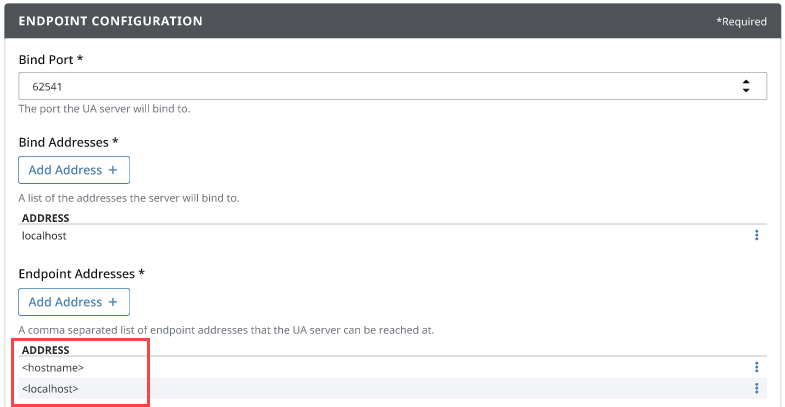
-
Click Save Changes at the top of the page. After making changes to your settings, saving may help flush out any residual information.
-
Check your Bind Addresses. The default value for this setting is
localhost. If you want to expose the OPC UA Server to external clients, you can use a value like 0.0.0.0 or the IP address of the computer. Click Save Changes.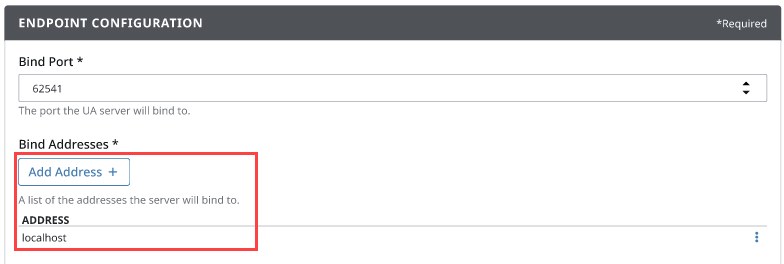
-
Check your Security Policies. Possible values for this setting are listed in the table under OPC UA Server Settings. Click Save Changes.

If you continue running into problems after following these troubleshooting steps, contact the Support department.