Exporting and Importing a CSV
A CSV (comma separated values) file, is one of the most simple structured formats used for exporting and importing datasets. It is a convenient and flexible way to edit and share data across applications. Ignition has a built-in function to convert a dataset to CSV data called system.dataset.toCSV. You can even convert the contents of a CSV in a script and move it to an Ignition component, such as a Table.
This section contains examples for exporting and importing data to a CSV, as well as converting the contents of a CSV file.
Exporting Data to a CSV

You can export a dataset from a query or table to a CSV file. In the following examples, we will generate data on a Power Table and Table component in Vision and Perspective respectively, and then export that data.
Vision Example
-
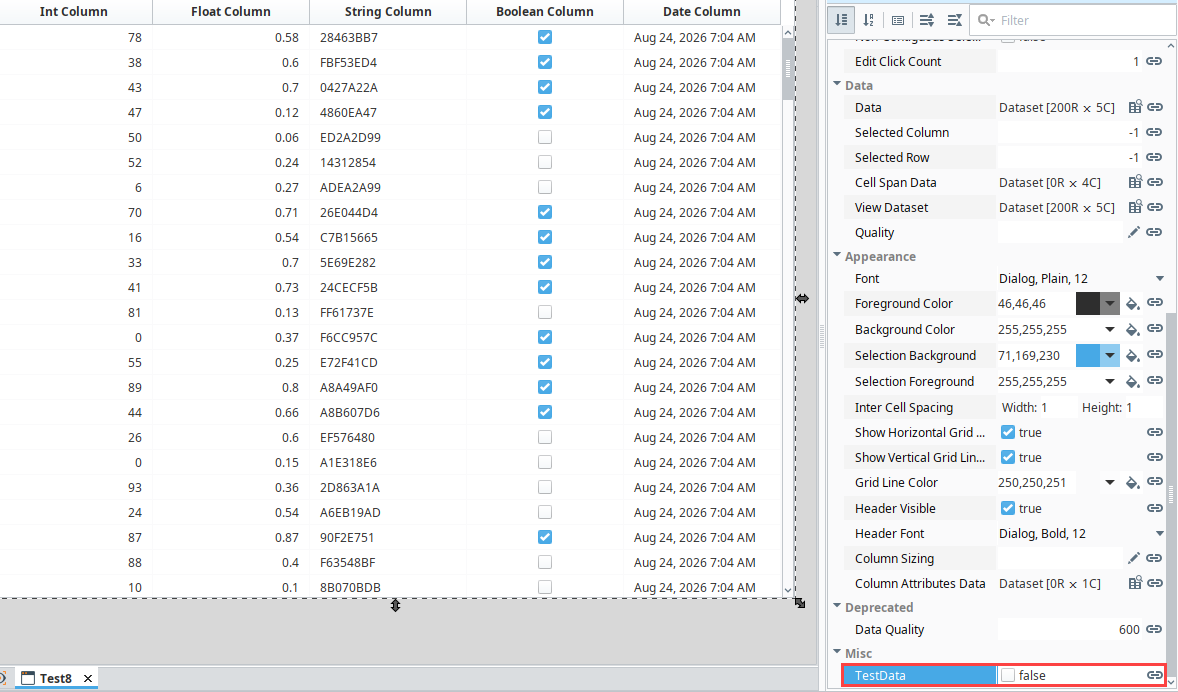
Drag a Power Table component on to your window and toggle the TestData property to generate some data.
-
Drag a Button component on the window, and select Scripting from the Button's right-click menu to open the Component Scripting popup.
-
Select the action > actionPerformed event, and click on the Script Editor tab.
-
Copy the example script below, and paste the contents to the Script Editor.
Hard Coded Filepath# Create a variable that references our Power Table. You could modify this part
# of the example to point to a different component in the window.
component = event.source.parent.getComponent('Power Table')
# Use system.dataset.toCSV to turn the dataset into a CSV string
csv = system.dataset.toCSV(component.data)
# Write to local file system. Note the "r" character right before the directory path.
# This denotes a raw string literal, meaning we ignore escape sequences (like the "/")
system.file.writeFile(r"C:\myExports\myExport.csv", csv)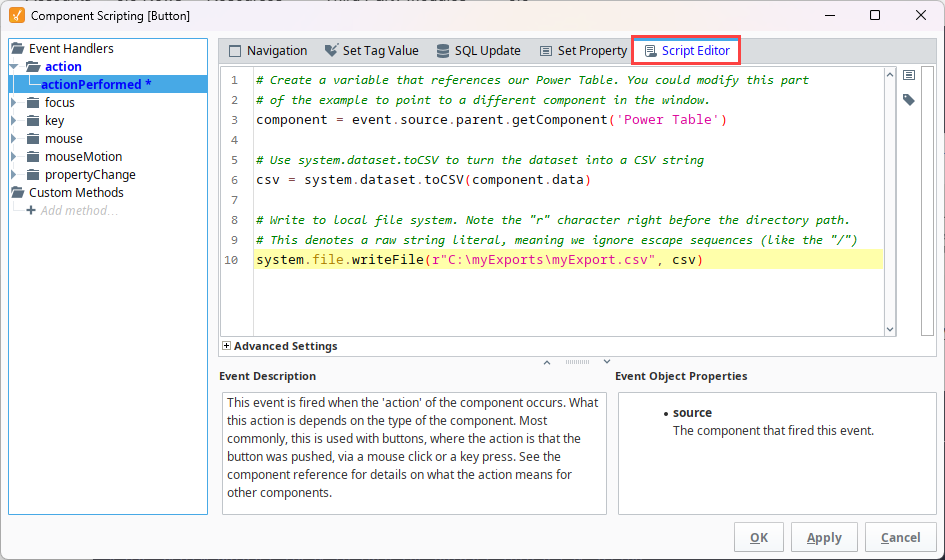
To test your script, put the Designer in Preview Mode, and click the Button component. Then, open your myExport.csv file and check your data.
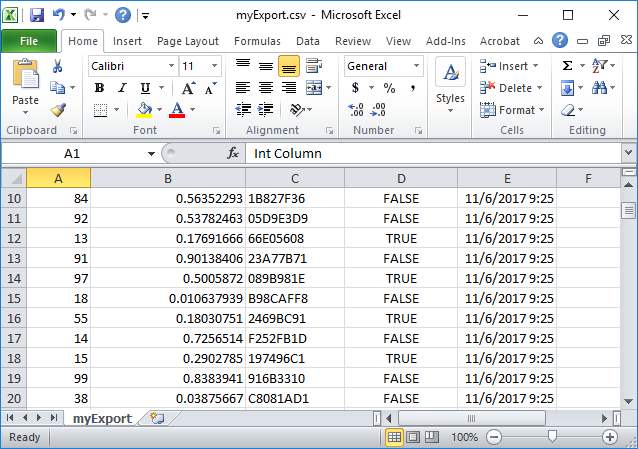
Instead of hardcoding the path as we did in the above example, we could ask the user to select a directory on the local system with system.vision.saveFile:
# Create a variable that references our Power Table. You could modify this part
# of the example to point to a different component in the window.
component = event.source.parent.getComponent('Power Table')

# Use system.dataset.toCSV to turn the dataset into a CSV string.
csv = system.dataset.toCSV(component.data)

# Use system.vision.saveFile to have the user find a directory to write to.
filePath = system.vision.saveFile("myExport.csv", "csv", "Comma Separated Values")

# We can check the value of filePath to make sure the user picked a path before
# attempting to write.
if filePath:
    system.file.writeFile(filePath, csv)
Perspective Example
This example demonstrates how to generate a CSV file from a Table component that contains a dataset.
You can run the script in this example using the default data for a Table component.
-
Drag a Table component to your view.
-
Right-click on the
dataproperty and select Change to > Array, if not already selected.{
"$": [
"ds",
192,
1787772403105
],
"$columns": [
{
"name": "Col 1",
"type": "Integer",
"data": [
44,
86,
0,
78,
20,
21
]
},
{
"name": "Col 2",
"type": "String",
"data": [
"Test Row 2",
"Test Row 3",
"Test Row 8",
"Test Row 9",
"Test Row 10",
"Test Row 13"
]
},
{
"name": "Col 3",
"type": "Double",
"data": [
1.8713151369491254,
97.4913421614675,
20.39722542161364,
34.57127071614745,
76.41114659745085,
13.880548366871926
]
}
]
}Col 1 Col 2 Col 3 44 Test Row 2 1.87 86 Test Row 3 97.49 0 Test Row 8 20.4 78 Test Row 9 34.57 20 Test Row 10 76.41 21 Test Row 13 13.88 -
Drag a Button component to the view, and select Configure Events from the Button's right-click menu to open the Event Configuration popup.
-
Select Component Events > onActionPerformed.
-
Click the Add icon and select Script.
-
Copy and paste the script example below into the Script field.
Exporting Data# Create a variable that references our Table.
component = self.getSibling("Table").props.data
# Use system.dataset.toCSV to turn the dataset into a CSV string
csv = system.dataset.toCSV(component)
# Write to local file system. Note the "r" character right before the directory path.
# This denotes a raw string literal, meaning we ignore escape sequences (like the "/")
system.file.writeFile(r"C:\myExports\myExport.csv", csv)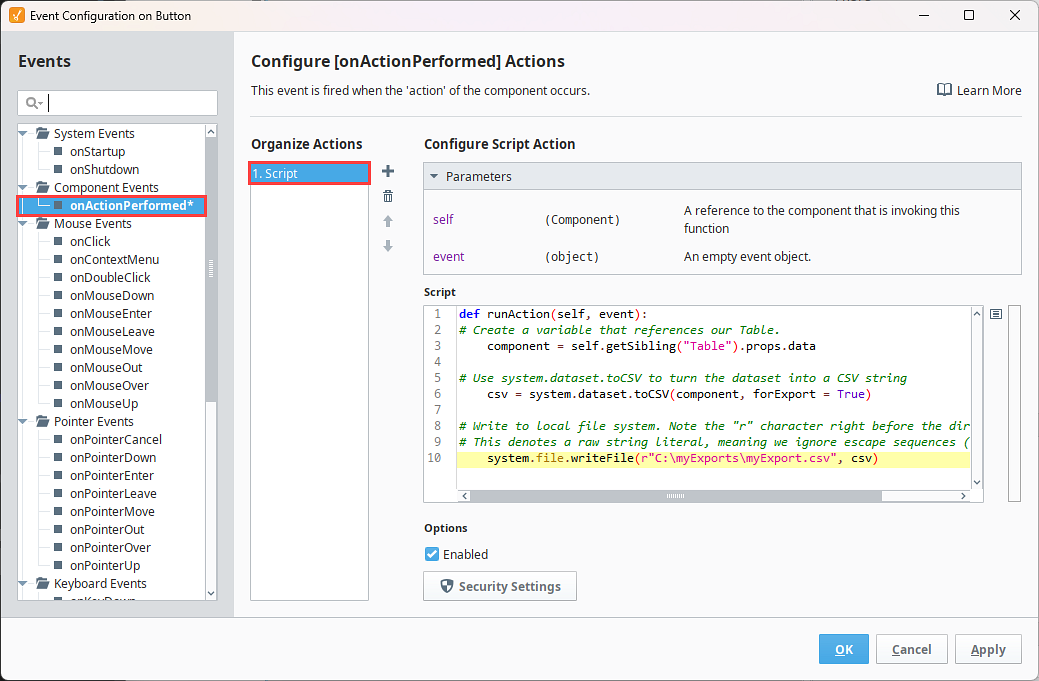
To test your script, put the Designer in Preview Mode, and click the Button component. Then, open your myExport.csv file and check your data.
Instead of hardcoding the path as we did in the above example, we could use the system.perspective.download function to trigger the browser to download the file to the local Downloads directory:
# Create a variable that references our Table.
    component = self.getSibling("Table").props.data

# Use system.dataset.toCSV to turn the dataset into a CSV string
    csv = system.dataset.toCSV(component)

# Write to the local file system's Downloads directory.
    system.perspective.download("myExport.csv",csv)
Importing Data from a CSV
There are several ways to import data from a CSV file. First, we could use system.file.readFileAsString to read the entire file as a string. This will read the file as is, meaning \n can be used to denote new lines.
# Specify the CSV path in the local file system.
file = "C:\\my_dataset.csv"

# Use readFileAsString to read the contents of the file as a string.
# This string will be the parameter we pass to fromCSV below.
stringData = system.file.readFileAsString(path)

# Split stringData into a List of strings, delimited by the new line character
stringData = stringData.split("\n")

# Iterate through the list, and do something with each line
for i in range(len(stringData)):

    # We're printing the row here, but you could do something more useful with the data.
    print stringData[i]
Alternatively, Python's CSV Library could be used to read in the contents of a CSV. In some cases, this is the easier approach, as the reader object is ready to be iterated over. This approach reads in each row as a List of strings:
# Import Python's built-in csv library
import csv

# Specify the CSV path in the local file system.
file = "C:\\my_dataset.csv"

# Create a reader object that will iterate over the lines of a CSV.
# We're using Python's built-in open() function to open the file.
file = open(path)
csvData = csv.reader(file)

# Iterate through the reader object, and do something with each line
for row in csvData:

    # We're printing the row here, but you could do something more useful with the data.
    print row

# Close the file once we're done with it
file.close()
Converting the Data into a Dataset
If you want to move CSV data into a component, it will need to be converted into a dataset so that it fits into the component's data property. There are a couple of functions that can be used to accomplish this depending on the format of your CSV file.
Calling the system.dataset.fromCSV Function
The system.dataset.fromCSV function can take a string and convert it to a dataset. The function expects a very specific format:
#NAMES
Col 1,Col 2,Col 3
#TYPES
I,str,D
#ROWS,6
44,Test Row 2,1.8713151369491254
86,Test Row 3,97.4913421614675
0,Test Row 8,20.39722542161364
25,Test Row 4,20.39722542444222
33,Test Row 5,20.39722542232323
62,Test Row 6,20.39722542111999
Vision Example
-
Create a text file on your local system named example.csv containing the CSV File Content sample code above.
-
Add a Power Table and a Button component to your window.
-
Select Scripting from the right-click menu for the Button component, and paste the following code into the Script Editor of the actionPerformed event:
Python - Using system.dataset.fromCSV()# Ask the user to find the CSV in the local file system.
path = system.vision.openFile("csv")
# Use readFileAsString to read the contents of the file as a string.
stringData = system.file.readFileAsString(path)
# Convert the string into a dataset
data = system.dataset.fromCSV(stringData)
# Pass the dataset to the data property on the Power Table.
event.source.parent.getComponent('Power Table').data = data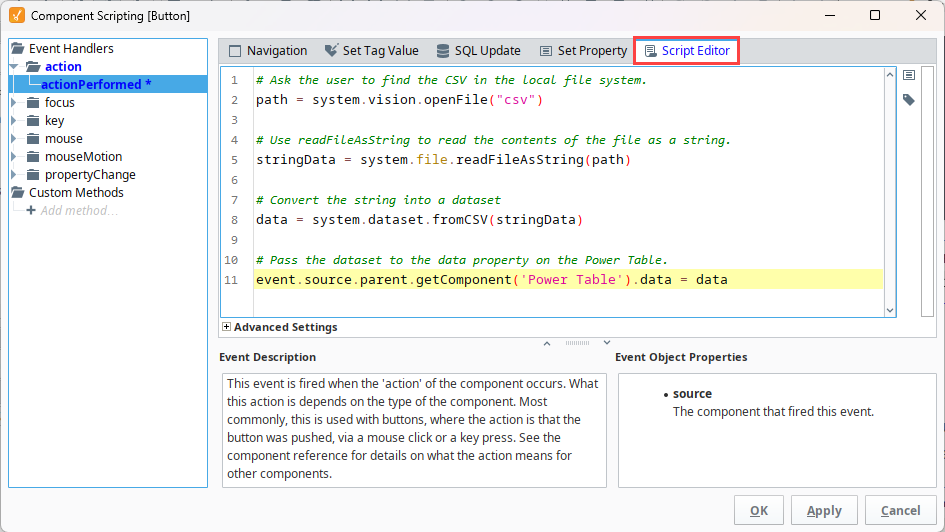
-
Put the Designer into Preview Mode, and click the Button.
-
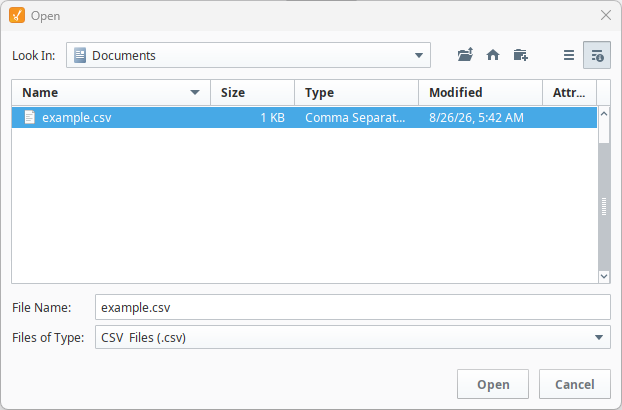
A popup will open for you to navigate and choose your CSV file, then click Open.
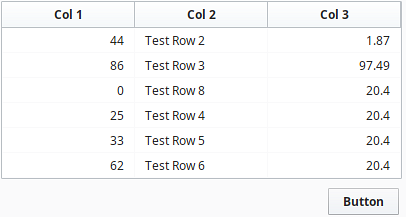
Your data will be displayed in the Power Table as shown below.
Perspective Example
-
Create a text file on your local system named example.csv containing the CSV File Content sample code above.
-
Add Table component and a Button component to your view.
-
Select Configure Events from the Button's right-click menu to open the Event Configuration popup.
-
Select Component Events > onActionPerformed.
-
Click the Add icon and select Script.
-
Paste the following code into the Script Editor of the actionPerformed event:
Python - Using system.dataset.fromCSV()# Specify file path.
file_path = "C:\\my_dataset.csv"
# Read in the file as a string.
data_string = system.file.readFileAsString(file_path)
# Convert the string to a dataset and store in a variable.
data = system.dataset.fromCSV(data_string)
# Assign the dataset to a table.
self.getSibling("Table").props.data = data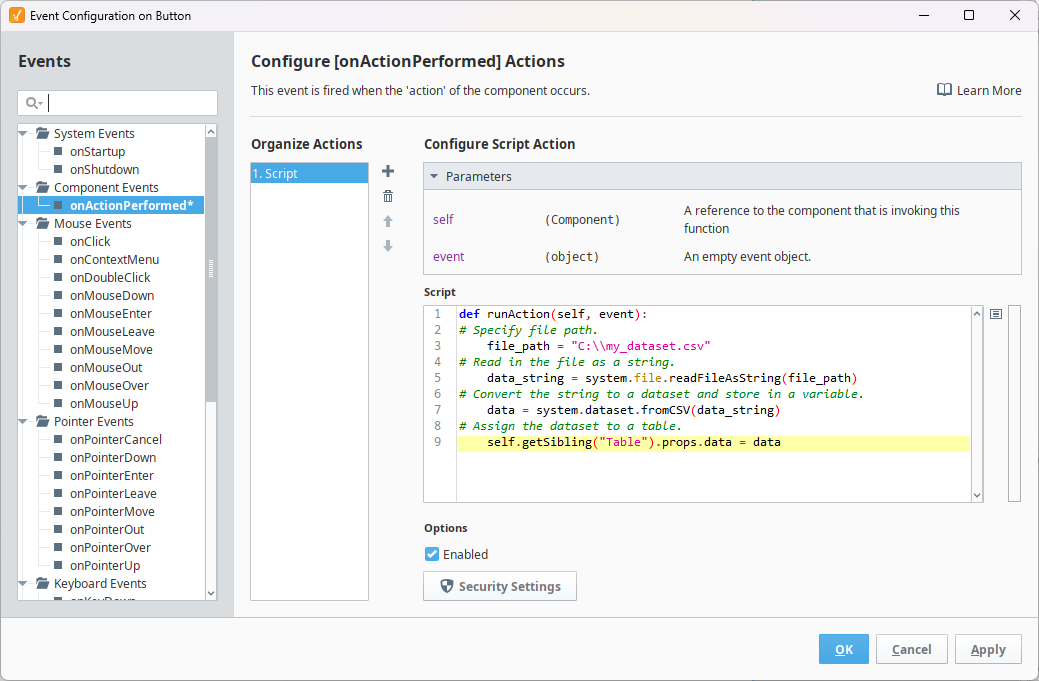
-
Put the Designer into Preview Mode, and click the Button.
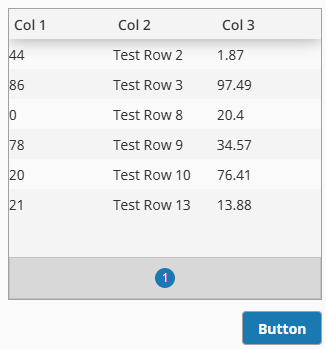
Your data will be displayed in the Table as shown below. Notice that the default array structure has been changed to value.
Calling the csv.reader Function
As mentioned, system.dataset.fromCSV() requires a specific format, which may not match the format of your file. In this case, we can use Python's CSV Library to parse the file and convert it to a dataset.
Col 1,Col 2,Col 3
44,Test Row 2,1.8713151369491254
86,Test Row 3,97.4913421614675
0,Test Row 8,20.39722542161364
25,Test Row 4,20.39722542444222
33,Test Row 5,20.39722542232323
62,Test Row 6,20.39722542111999
Below is a Vision code example to import the Python CSV data. Specifying the file path directly and replacing event.source.parent.getComponent('Power Table').data = dataset with self.getSibling("Table").props.data = dataset will enable this script to work for a Perspective Table component.
# Import Python's built-in CSV library.
import csv

# Ask the user to find the CSV in the local file system.
path = system.vision.openFile("csv")

# Create a reader object that will iterate over the lines of a CSV.
# We're using Python's built-in open() function to open the file.
file = open(path)
csvData = csv.reader(file)

# Create a List of strings to use as a header for the dataset. Note that the number
# of headers must match the number of columns in the CSV, otherwise an error will occur.
# The simplest approach would be to use next() to read the first line in the file, and
# store that at the header.
header = csvData.next()

# Create a dataset with the header and the rest of our CSV.
dataset = system.dataset.toDataset(header, list(csvData))

# Store it into the table.
event.source.parent.getComponent('Power Table').data = dataset

# Close the file
file.close()