Project Settings
When you create a new project, you'll have the options to configure most of the project settings. Projects can be created from the Projects page on the Gateway, by selecting the Create Project option above your project list, or in the Designer. See Creating a Project in the Designer for more details.
Project Settings
If you want to view or edit your project settings once your project is saved:
-
Go to the Platform section on the Gateway Webpage and select System > Projects.

-
Expand the three dots menu to the right of the project name and select Edit.

Now the Edit Project panel is displayed.
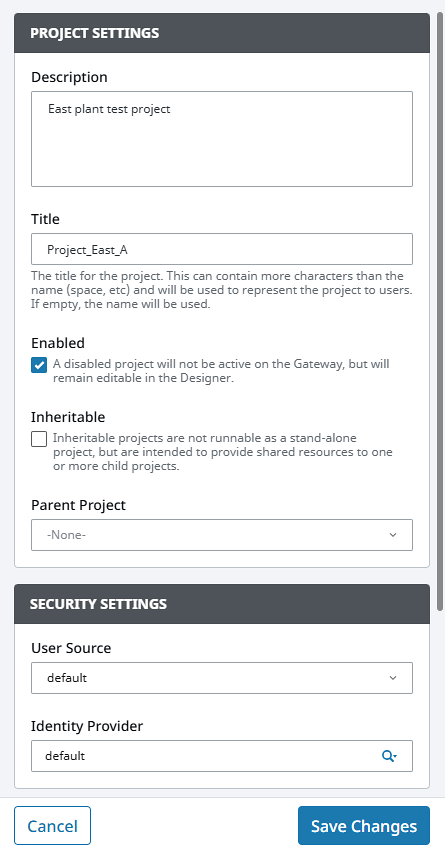
Project Properties
Project Settings
| Property | Description |
|---|---|
| Project Name | Name of the project. The name of the project cannot be changed from the Edit panel. You must click the Rename option to display the Rename Project form. |
| Description | Brief description of the project. If the Description column is hidden in the settings, users can still view existing descriptions by hovering over the Information  icon next to the project name. (Optional) icon next to the project name. (Optional) |
| Title | Title for the project. This is the name that will be displayed on the launch page of the Gateway and in the runtime Client or Session. There are no restrictions to special characters or spaces. If no title is specified, the project name will be used instead. (Optional) |
| Enabled | A disabled project will not be active on the Gateway, but will remain editable in the Designer. |
| Inheritable | Inheritable projects are not runnable as a stand-alone project, but are intended to provide shared resources to one or more child projects. |
| Parent Project | Each project can have a parent project, and will inherit all of the resources of that parent project. |
Security Settings
| Property | Description |
|---|---|
| User Source | A group of users with their associated roles. Security policies are defined in terms of these roles. |
| Identity Provider | New in 8.3.2 Determines the Identity Provider associated with this project (when using the Identity Provider authentication strategy). |
Connections
| Property | Description |
|---|---|
| Default Database | Database to be used for historical data logging, reporting, storing alarm logs, and Tags storage. You can also query existing data and update data in the database. |
| Default Tag Provider | Identifies a Tag database (a collection of Tags) and a name. |
Managing Projects
Once you have a project or two (or twenty) set up, you might want to change some of the base settings. You can manage the projects from the Platform section of the Gateway by going to System > Projects. The Projects page displays all your projects. To the right of the project name, click the three dot menu. Once expanded, you'll see all the actions you can take for your project, such as Edit, Rename, Duplicate, Export, Disable, and Delete.
You can also manage many of these settings in the Designer. See the Project Properties page for more information.
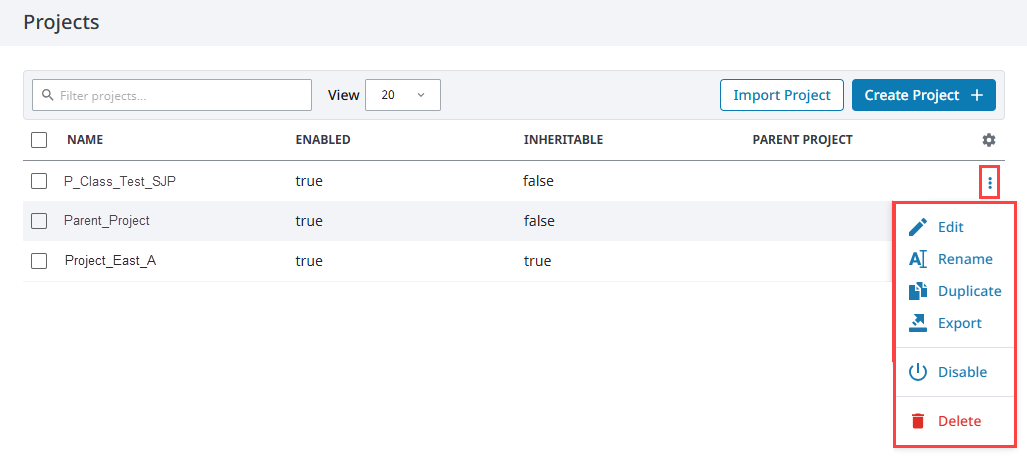
Viewing Editing the Details a Project
You can view and edit project settings, go to the Platform > System > Projects Gateway page. From here, you change the project settings, such as project Description, Title, Enabled, etc. You can also change connections to the User Source, Default Database, and Default Tag Provider. Refer to the Project Settings section above for complete process details.
It is not advisable to change the Project Name after it's been created, instead, change the Title property if you want to change how the project appears. Shortcuts that refer to the project will no longer work if the project name is changed.
It is important to note that you cannot change any of these project settings from the Gateway if the project is currently open in a Designer.
Deleting a Project
Be aware that once you delete a project, it cannot be undone, a deleted project is gone forever (unless it can be recovered from a project export, or a Gateway backup). Always make a project export or Gateway Backup before deleting a project. To delete a project, go to the Platform section of the Gateway, and then to System > Projects. You will now see a list of all your projects. To the right of the project name in the list, expand the three dots menu and click Delete. This deletes your project.
Duplicating a Project
Copying your project is useful when you need a snapshot of a project before starting major changes, or for creating a starting point for a new project based on an old one. To duplicate a project, go to the Platform section of the Gateway, and then to System > Projects. You will now see a list of all your projects. Expand the three dots menu to the right of the project name in the list and click Duplicate. This creates a copy of your project.
Renaming a Project
Changing the name of a project is risky. Shortcuts that refer to the project will no longer work. It is advisible to change the Title which is much safer. If you decide to rename a project, go to to the Platform section of the Gateway and then to System > Projects. Expand the three dots menu to the right of project name in the list and click Edit. In the Name field on the Project Settings panel, click the Edit  icon. This will open a Rename Project form. Read it carefully, and if you want to proceed, enter a new project name, mark the checkbox acknowledging that the project will shutdown and restart, then click Rename.
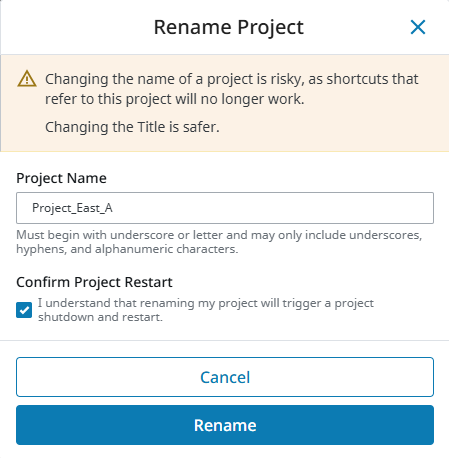
Renaming a project triggers a project shutdown and restart.
Exporting a Project
Project Export creates a project backup as a .zip file. It takes less time than a Gateway backup and it's smaller. Once you have an exported file of your project, you can take it to any other Gateway and merge it in with other projects. Refer to the Project Export and Import page to learn exactly what is included in a project export.