Localization and Languages
Translating Ignition
Localization lets you display projects in multiple languages. Translations are stored in the Gateway and can be used in Perspective sessions, Vision clients, alarms, and scripts. This allows users in different regions to view the same project in their preferred language without additional setup in each project.
In Perspective, localization is configured by mapping component text to translation keys and setting the session's locale. When the locale changes, the text updates automatically. For example, you can provide a dropdown that switches the session from English to Spanish. Vision also supports localization through the same translation database, and it can define component-level terms through the Translatable Terms panel. Vision projects can also use tools such as the Language Selector component.
Translation Manager
All translations are stored in a shared database that makes it possible to manage terms in one place and apply them to any project. Translation functionality is available in Perspective Sessions, Vision Clients, Gateway scripts, and alarm messages. Translation support is built into component text properties and other text-based properties, such as with alarm messages. In most cases, once a translation is defined, no additional configuration is needed for it to be applied. You can view and edit the translation database in the Designer's Translation Manager. Use the Translation Manager to add, edit, or remove keys, attach notes to keys, define new languages, and import and export translation lists.
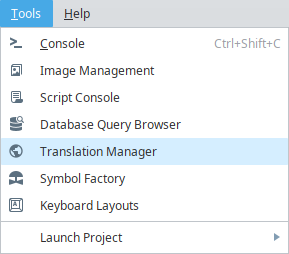
To open the Translation Manager, go to the menu bar and select Tools > Translation Manager. The Translation Manager opens in its own window.
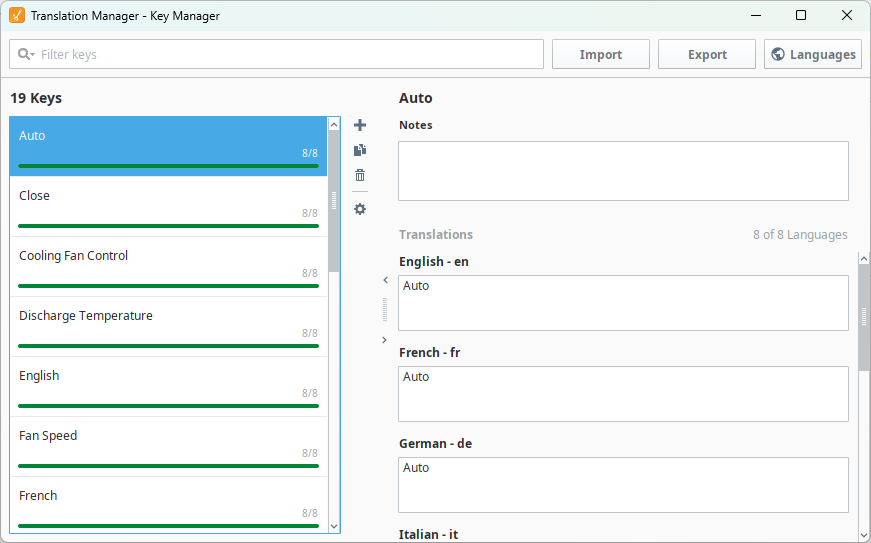
The Translation Manager opens to the Key Manager, which contains the following:
- Filter keys: Narrows the key list to the keys that match your search.
- Import and Export: Import translations from a file, or export them to a file. See Translation List Import and Export.
- Languages: Opens the Select Languages view, where you choose which languages are available for translation. See Add a New Language.
- Key list: Lists every key in the translation database. Each key shows how many languages have a translation, such as 8/8, along with a progress bar.
- Add
 and Delete
 : Add new keys, or remove the selected key. See Add Global Translation Terms.
- Translation Settings
 : Sets how text is matched to keys when translations are looked up. See Translation Settings.
- Notes: Describes what a key's text is and where it appears, such as the screen it's used on or how long the translation can be. Notes give translators context along with the terms.
- Translations: Shows a field for each language, where you can enter or edit the key's translation.
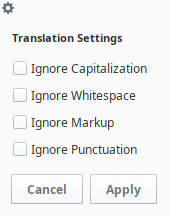
Translation Settings
Click the Translation Settings icon next to the key list to choose which differences are ignored when text is matched to a key. Select any of the following options, and click Apply:
- Ignore Capitalization
- Ignore Whitespace
- Ignore Markup
- Ignore Punctuation
In addition to the Translation Manager, you can work with the translation database through scripting using the system.i18n functions to list translation keys, translate multiple terms at once, and add, update, or remove translations and notes.
Translation Database and Term Lookup
Translations are stored in the Gateway's database as keys. A key is the base term Ignition uses to look up the correct translation. Keys can be simple text such as Start, or coded identifiers such as START_COMMAND or #start. Using coded identifiers helps avoid accidental matches and makes terms easier to reuse across projects.
When a component property references a key, Ignition checks the translation database for a matching entry in the active language. If no match is found, the English value is displayed by default.
In Perspective, you assign a key to a component property in the Property Editor. When the session's locale changes, all components bound to that key automatically update to display the correct translation.
Using the Translatable Terms Panel in Vision
In Vision, you can view and edit translation keys directly in the Translatable Terms panel. To open it, go to the menu bar and select View > Panels > Translatable Terms.

The panel shows each term for the components in the current window, along with the translations available for the active language.

Previewing Translations
In Perspective, you can preview translations by changing the session's locale. In the Designer, select Perspective in the Project Browser to open the Session Properties, then set locale to the desired language. You can update the locale in a running session through scripting or bindings. When the locale changes, all text mapped to translation keys updates automatically.

In Vision, you can preview translations by setting a Preview Language in the Designer. Go to the menu bar, select Project > Preview Language and choose a language. When you switch to Preview Mode, text in the window updates to the selected language. You can also use the Language Selector component or a script to temporarily change the language. The Designer remembers your preview language even after a restart, but it reverts whenever Preview Mode is disabled.
