OPC UA Redundant Connections
An OPC UA Redundant connection connects Ignition to a redundant set of OPC UA servers instead of a single server. Ignition discovers every server in the set from one configured endpoint, monitors the health of each server, and automatically moves to a healthy server when the active server degrades or fails.
The connection follows the non-transparent redundancy model in Part 4 of the OPC UA specification. Although several physical servers may be involved, the connection appears in Ignition as a single OPC connection. Tags, the OPC Browser, and scripting functions use it like any other OPC connection.
OPC UA Redundant connections are available in Standard, Edge, and Maker Editions.
OPC UA Redundant connections are separate from the Failover settings on a standard OPC UA Connection. Failover settings switch between two fixed endpoints and don't use server health information. OPC UA Redundant connections don't change how existing Failover settings behave.
Requirements
Every server in the set must support OPC UA non-transparent redundancy. Each server must report the following values:
- RedundancySupport: Cold, Warm, or Hot
- ServerUriArray: The servers in the redundant set
- ServiceLevel: The server's current health, from 0 to 255
If the server reports a RedundancySupport value of None, the connection faults. Use a standard OPC UA Connection for servers that aren't part of a redundant set.
You can use a redundant pair of Ignition Gateways as the target of an OPC UA Redundant connection. Ignition's OPC UA server acts as a non-transparent redundant set in Cold mode. For more information, see Ignition's OPC UA Server.
How Redundant Connections Work
Server Discovery
When the connection starts, Ignition connects to the configured endpoint, reads the ServerUriArray, and discovers the other servers in the set. The connection then saves the discovered server list. If the configured endpoint is unavailable later, for example after a Gateway restart, the connection can still recover by using the saved server list.
The connection refreshes the server list at the interval set by the Topology Poll Interval setting, and automatically picks up servers that are added to the set, removed from the set, or moved to a new address.
Service Level
Each OPC UA server reports a Service Level value from 0 to 255 that indicates how well the server can provide data. The connection polls the Service Level of every server in the set and uses these values to decide which server should be active.
| Service Level | Sub-range | Description |
|---|---|---|
| 0 | Maintenance | The server is in maintenance and can't provide data. |
| 1 | No Data | The server isn't operational and has no data available, other than its status and diagnostic information. |
| 2-199 | Degraded | The server can provide data, but with reduced quality or performance. |
| 200-255 | Healthy | The server is working normally. |
For more details on the ServiceLevel sub-ranges, see the OPC UA specification.
Active Server Selection and Failover
At any given time, one server in the set is the active server. All browse, read, write, and live subscription traffic for the connection goes through the active server. While the active server stays in the Healthy range (200-255), the connection doesn't switch servers, even if another server reports a higher Service Level.
The connection fails over when the active server's Service Level drops below 200, when the active server enters maintenance, or when Ignition loses its connection to the active server. The connection chooses the healthiest of the remaining servers as the new active server. When a server that failed comes back online, it rejoins the set as a standby server. The connection doesn't switch back to it unless the current active server later fails.
When Ignition loses its connection to the active server, it waits for the remaining servers to confirm their health before choosing a new active server. The Failover Settlement Window setting controls the longest time to wait.
Redundancy Modes
The redundancy mode determines how ready the standby servers are to take over when the active server fails. Higher modes reduce the data gap during failover but create more load on the servers and the network.
| Mode | Standby Servers | At Failover |
|---|---|---|
| Cold | Ignition connects to only one server at a time. No subscriptions exist on standby servers. | Ignition connects to the new server and recreates all subscriptions. This mode has the longest gap in data. |
| Warm | Ignition connects to the standby servers and creates subscriptions on them, but the standby servers don't sample data. | Ignition activates sampling and publishing on the new active server. |
| Hot | Ignition connects to the standby servers, and the standby servers sample data in the background without reporting it to Ignition. | Ignition activates publishing on the new active server. This mode has the shortest gap in data. Ignition compares timestamps so that older queued values from the standby server don't overwrite newer values. |
The connection runs in the highest mode that both the Mode Cap setting allows and the server set supports. For example, if the Mode Cap is set to Hot and the server set only supports Cold, the connection runs in Cold mode. If the Mode Cap is set to Warm and the server set supports Hot, the connection runs in Warm mode. If the server set later supports a higher mode, the connection moves up to that mode automatically, up to the Mode Cap, without restarting. You can see the mode the connection is using on the Redundancy tab of the connection's diagnostics.
Ignition supports the Cold, Warm, and Hot (a) failover modes from the OPC UA specification. Hot (b), HotAndMirrored, and transparent redundancy are not supported.
In Cold mode, Ignition recreates subscriptions on the new active server after a failover. Tags using the connection may briefly show Bad quality until new values arrive from the new server. If your application can't tolerate this gap, use Warm or Hot mode with servers that support it.
Creating an OPC UA Redundant Connection
-
On the Connections section of the Gateway Webpage, go to OPC > Connections.
-
Click Create OPC Connection +.
-
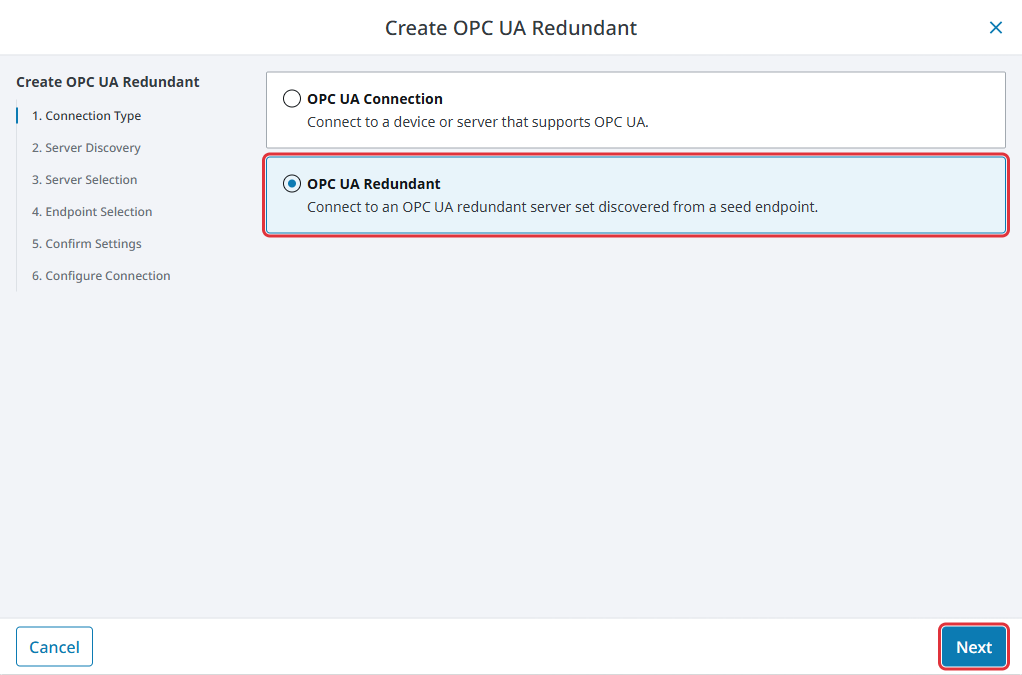
Select OPC UA Redundant from the list and click Next.
-
Enter the endpoint URL of any server in the redundant set, in the format
opc.tcp://IpAddress:Port. Ignition uses this server to discover the rest of the set. -
Follow the remaining discovery steps to choose a server, an endpoint, and a security policy, and to trust the server certificate if needed. These steps are the same as Configuring an OPC Client Connection.
-
On the Configure Connection page, give the connection a name and set the Authentication Type if the servers require it. The default Authentication Type for OPC UA Redundant connections is Anonymous.
-
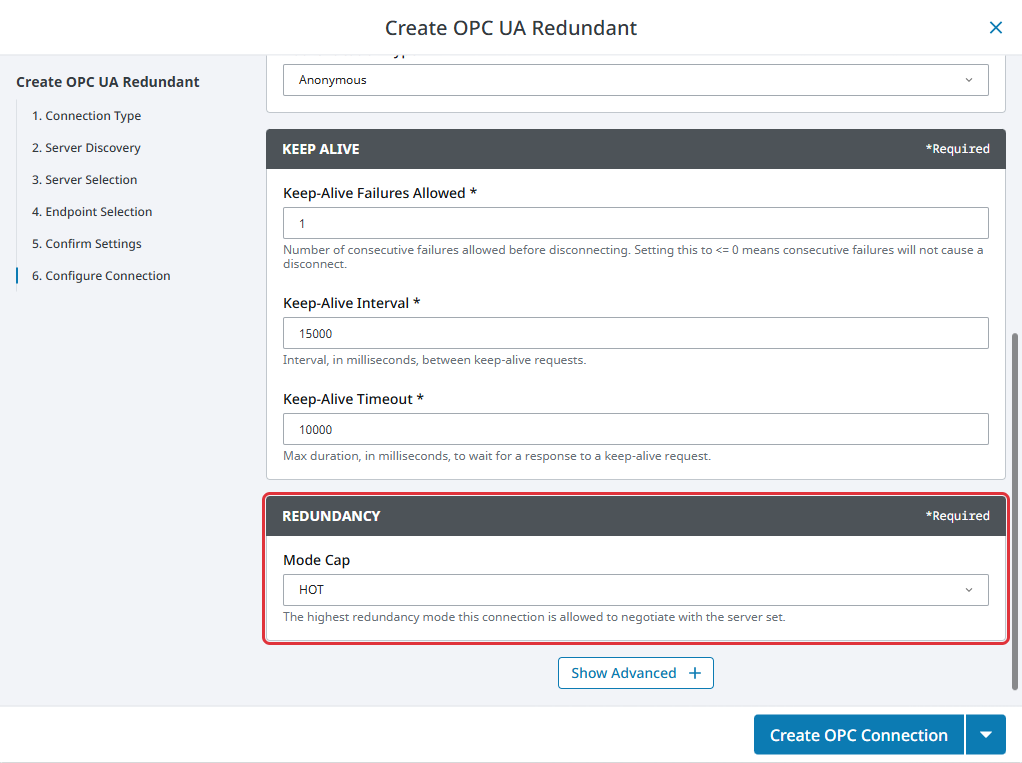
In the Redundancy section, select a Mode Cap. The default is HOT.
-
Click Create OPC Connection.
After you create the connection, you can confirm which server is active and check the health of each server on the connection's Redundancy tab.
OPC UA Redundant Connection Settings
OPC UA Redundant connections use the same General, Authentication, Keep Alive, Advanced Properties, and Security settings as standard OPC UA connections. For descriptions of those settings, see OPC UA Client Connection Settings. The Host Override setting applies to the endpoint configured for the connection.
OPC UA Redundant connections don't have Failover settings. Instead, they have the following redundancy settings.
Redundancy
| Property | Description |
|---|---|
| Mode Cap | The highest redundancy mode this connection is allowed to negotiate with the server set. Options are COLD, WARM, and HOT. Default is HOT. |
Redundancy Advanced
| Property | Description |
|---|---|
| Service Level Poll Interval | How often, in milliseconds, to request the Service Level from each server in the redundant set. Default is 1,000. |
| Service Level Poll Timeout | How long, in milliseconds, to wait for a server to answer a Service Level request before counting the request as failed. Default is 1,000. |
| Topology Poll Interval | How often, in milliseconds, to refresh the list of servers in the redundant set. Refreshing picks up servers that have been added, removed, or moved to a new address. Default is 60,000. |
| Topology Poll Timeout | How long, in milliseconds, to wait for a server list refresh to complete before giving up until the next scheduled refresh. Default is 5,000. |
| Reconnect Initial Delay | How long, in milliseconds, to wait before the first attempt to reconnect to a server after its connection is lost. The wait increases after each failed attempt, up to the Reconnect Max Delay. Default is 1,000. |
| Reconnect Max Delay | The longest wait, in milliseconds, between attempts to reconnect to a server, no matter how many attempts have failed. Default is 30,000. |
| Failover Settlement Window | When Ignition loses its connection to the active server, the longest time, in milliseconds, to wait for the remaining servers to confirm their health before choosing a new active server. Ignition chooses as soon as every server responds, so the full wait only happens when a server is unresponsive. Default is 10,000. |
| Retired Member Age | How long, in milliseconds, to remember a server after it disappears from the redundant set, in case it comes back. After this time, Ignition discards the saved details for the server. Default is 300,000. |
| Transient Poll Failure Threshold | The number of consecutive Service Level requests that must fail before Ignition no longer considers a server healthy. Ignition treats failures below this count as momentary network issues, and the server keeps its last known status. Default is 3. |
Redundancy Diagnostics
To open the Diagnostics panel for an OPC UA Redundant connection:
- Go to Connections > OPC > Connections.
- Click the three dots menu next to the connection and select Diagnostics.
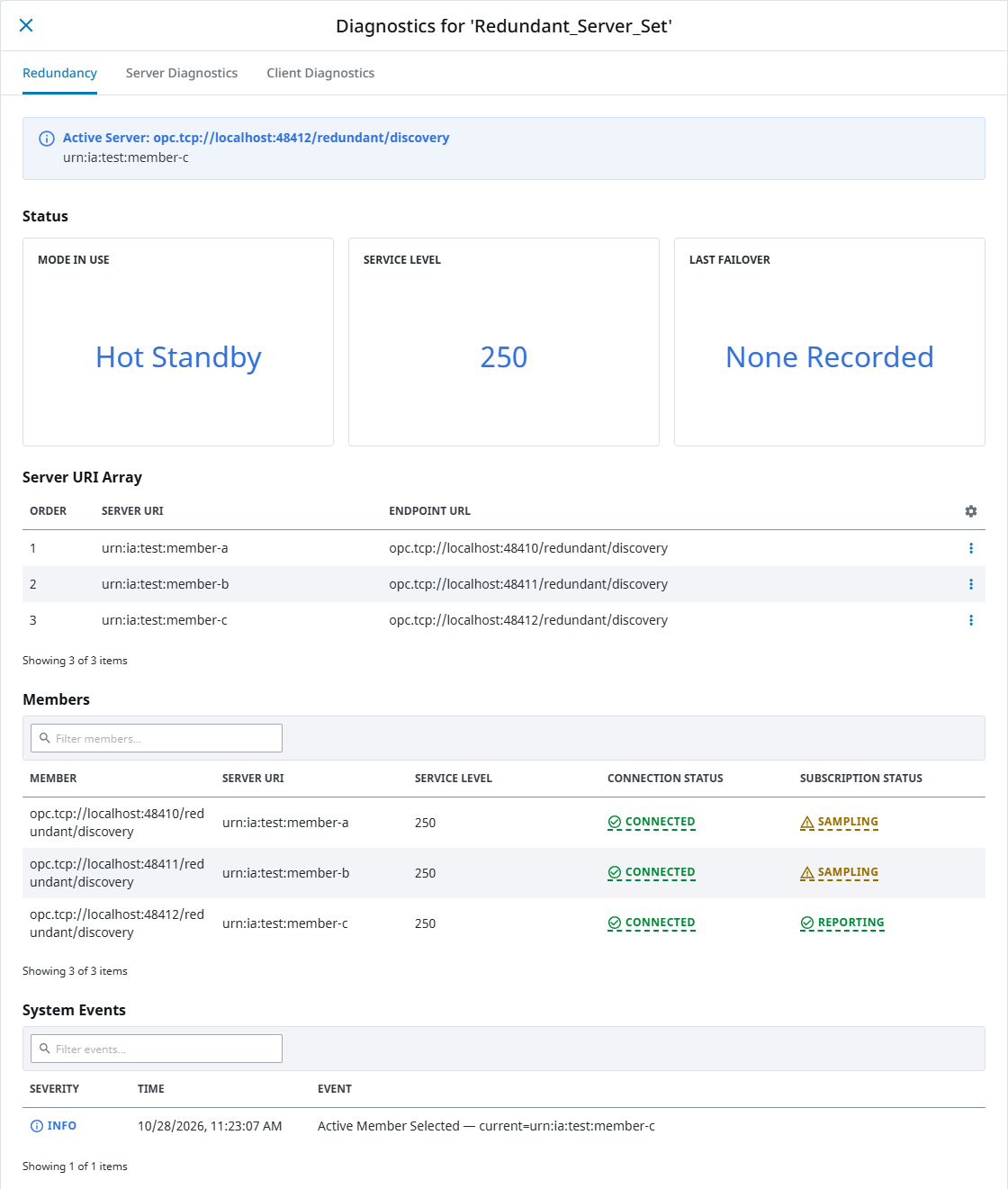
The panel for an OPC UA Redundant connection has three tabs: Redundancy, Server Diagnostics, and Client Diagnostics.
Redundancy Tab
The top of the Redundancy tab shows the Active Server banner, with the active server's endpoint URL and server URI. If no server is active, the tab displays a No active server message instead.
Below the banner, the tab displays the following summary cards.
| Card | Description |
|---|---|
| Mode In Use | The redundancy mode the connection is currently running in: Cold Standby, Warm Standby, or Hot Standby. This reflects both the Mode Cap setting and what the server set supports. |
| Service Level | The active server's current Service Level. If the value isn't in the Healthy range, the card displays a label of Degraded, No Data, or In Maintenance next to the value. |
| Last Failover | How long ago the connection last switched active servers. |
Server URI Array
The Server URI Array table lists the servers that currently belong to the redundant set, as reported by the servers.
| Column | Description |
|---|---|
| Order | The position of the server in the ServerUriArray. |
| Server URI | The unique application URI of the server. For example: urn:IA:UaServer:Node1 |
| Endpoint URL | The endpoint URL used to connect to the server. For example: opc.tcp://10.10.1.20:4096 |
Members
The Members table shows the status of every server the connection knows about, including standby servers and servers that are currently unavailable.
| Column | Description |
|---|---|
| Member | The endpoint URL used to connect to the server. |
| Server URI | The unique application URI of the server. |
| Service Level | The Service Level most recently reported by the server. |
| Connection Status | The state of the connection to this server. See Member Connection Status. |
| Subscription Status | How ready this server is to provide data for the connection's subscriptions. See Member Subscription Status. |
Member Connection Status
| Status | Description |
|---|---|
| Connected | The session is up and the server is reporting a usable Service Level. |
| Connecting | Ignition is establishing a session with the server. |
| Disconnecting | Ignition is closing the session with the server. |
| Disconnected | There is no active session to this server. In Cold mode, standby servers normally show this status, because Ignition connects to only one server at a time. |
| Unavailable | Ignition is connected, but the server isn't usable. The Service Level is 1 or lower, or no health information has been received yet. |
| In Maintenance | The server reports that it is in maintenance. |
| Unknown | The connection state can't be determined. |
Member Subscription Status
| Status | Description |
|---|---|
| Reporting | The server is sampling values and reporting them to Ignition. This is the active server, and its data is live. |
| Sampling | The server is sampling values but not reporting them to Ignition. Standby servers show this status in Hot mode. |
| Prepared | Subscriptions are created on the server, but the server isn't sampling or reporting yet. Standby servers show this status in Warm mode. |
| Absent | No subscription is expected on this server. Standby servers show this status in Cold mode. |
| Not Available | The subscription status isn't known yet. |
System Events
The System Events table lists recent redundancy events for the connection, with the severity, time, and a description of each event. The list is limited to recent events and is not a complete history.
| Event | Description |
|---|---|
| Failover | The connection switched to a different active server. |
| Active Member Lost | The connection to the active server was lost. |
| Active Member Selected | A server was selected as the active server. |
| Active Member Elected On Partial Evidence | A server was selected as the active server before every server in the set responded with its health. This can happen when a server doesn't respond within the Failover Settlement Window. |
| Member Recovered No Failback | A server that had failed came back online and rejoined the set as a standby. The connection didn't switch back to it. |
| Topology Member Added | A server was added to the redundant set. |
| Topology Member Removed | A server was removed from the redundant set. |
| Topology Reordered | The order of servers in the ServerUriArray changed. |
Server Diagnostics and Client Diagnostics Tabs
The Server Diagnostics and Client Diagnostics tabs work the same way as they do for standard OPC UA connections. See Diagnostic Information for details. The following differences apply to OPC UA Redundant connections:
- The Server Diagnostics tab reads server and session diagnostics from the current active server. A banner at the top of the tab shows which server the data comes from. After a failover, the tab shows data from the new active server.
- The Client Diagnostics tab lists the connection's logical subscriptions, which span the whole redundant set. The tab doesn't show per-server details, such as the revised publishing interval, revised sampling interval, revised queue size, and item status codes.
System Tags
Each OPC UA Redundant connection provides system tags that show the current state of the redundant set. You can use these tags in projects to display the active server or to alarm on failover. For a list of these tags, see OPC System Tags.