Catalyst Core
The Catalyst Core module is bundled with the Ignition platform, and is required to use the Catalyst Agent module.
Adding AI Providers and Models
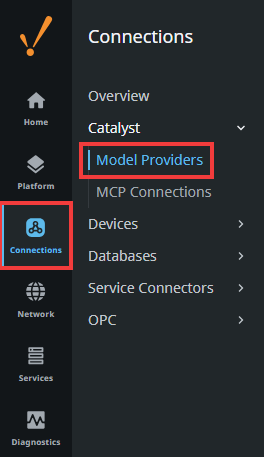
You can view existing and create new model providers on your Gateway at Connections > Catalyst > Model Providers.
Model Providers
The list below shows what information is displayed once a model is connected on the Model Providers page:
- Name: The name of the model.
- Type: The type of model provider. Currently, Ignition supports four different model providers, including:
- Anthropic
- Ollama
- OpenAI (or OpenAI API compatible endpoints)
- OpenRouter
- Base URL: The base URL to use for the selected type's API.
- Enabled: Whether the model is enabled or disabled.

Similar to other Gateway resources, you can expand the three dots menu for more actions, including editing the model configuration, renaming, disabling and enabling, creating an override or duplicating, or deleting it.
Creating a Model Provider
Before using any kind of AI in Ignition, you must first connect a provider and model.
Model Provider Procedure
The procedure below demonstrates how to set up a model provider.
-
On the Model Providers Gateway Webpage, click on Create Model Provider. The Create Model Provider popup form will open.
-
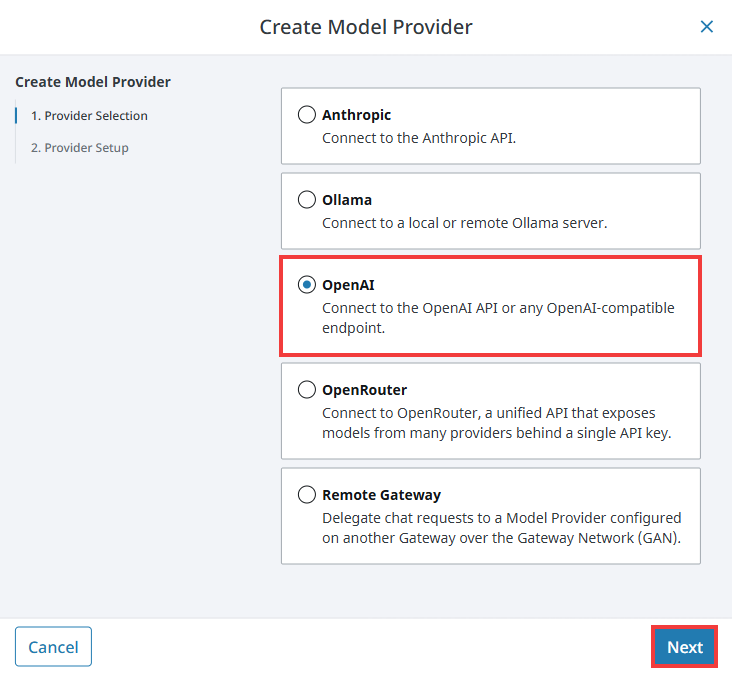
Select the model provider you want to use, then click Next. In this example, we will select OpenAI.
-
Fill out the form with the information for your model, then click Create Model Provider.
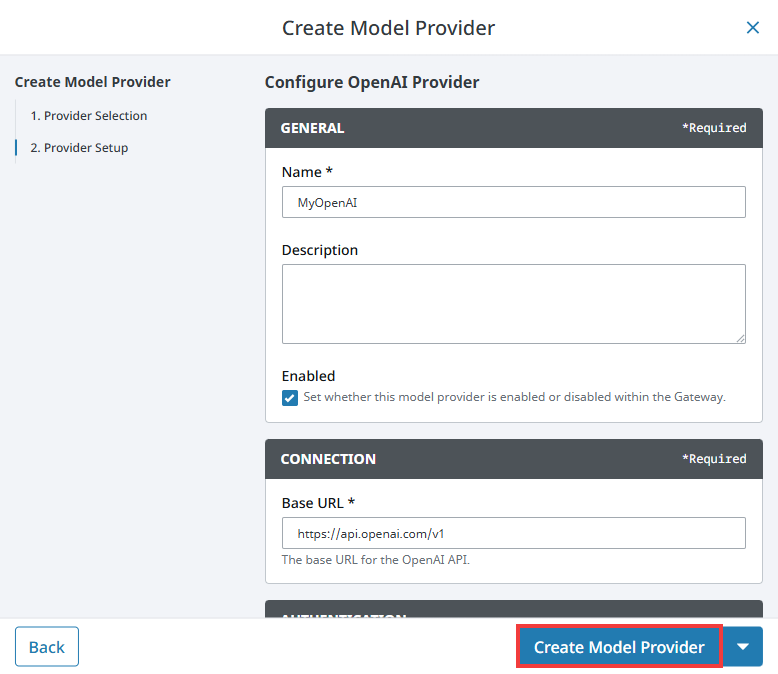
Your model provider will now be available to use throughout Ignition.
Model Provider Properties
The table below describes the various properties when setting up a model provider.
| Property | Description |
|---|---|
| Name | The name to use for your model provider. |
| Description | The description for your model provider. |
| Enabled | Whether or not the model provider is enabled in the Gateway. Default is true. |
| Base URL | The base URL to use for your model provider's API. |
| API Key | The credential to use for your model provider. Available for Anthropic, OpenAI, and OpenRouter. |
| Request Headers | Any custom request headers you want to add for your model provider. Available for OpenAI only. |
| App Title | The application title sent as the X-OpenRouter-Title header on every request. Available for OpenRouter only. |
| Default Model | The default model to use by AI features that do not request a specific model. |
| Request Timeout | The timeout in seconds for each chat requset to the specified provider's models. Default is 180. |
| Max Context Tokens | The upper bound in tokens on the context window used for every model on the specified provider. Available for Ollama only. |
| Context Window | The context window in tokens applied to every model on the specified provider. Available for OpenAI only. |
Configuring AI Settings
The Catalyst Settings page, located on your Gateway at Services > Catalyst > Settings, contains options to specify AI models for different purposes.
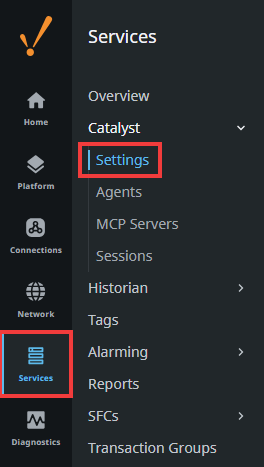
On this page, you can set a default model for features that don't require a specific type of AI, and also choose the AI model to use for Gateway Diagnostic Assistants.
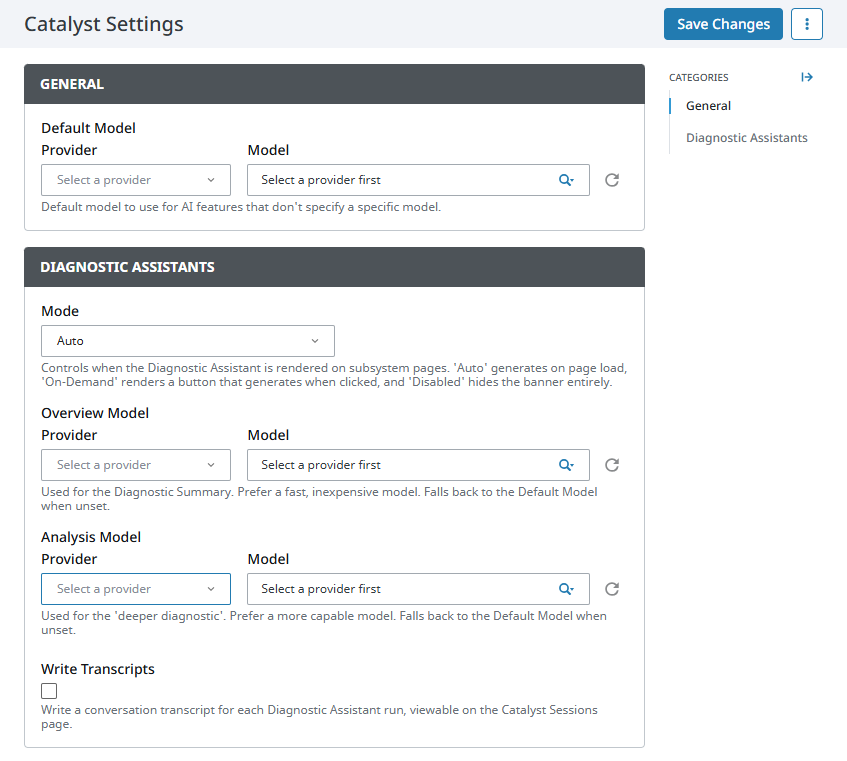
The sections below detail the different settings you can configure.
General
| Property | Description |
|---|---|
| Provider | The default provider to use. |
| Model | The default model to use from the provider. |
Diagnostic Assistant
| Property | Description |
|---|---|
| Mode | Controls how the Diagnostic Assistant is rendered on subsystem pages. Options include:
|
| Provider (Overview Model) | The provider to use for a basic Diagnostic Assistant. |
| Model (Overview Model) | The model to use for a basic Diagnostic Assistant. A faster, inexpensive model is recommended since this provides a general overview of the subsystem page. If no model is set, the default model will be used. |
| Provider (Analysis Model) | The provider to use for a more in-depth Diagnostic Assistant. |
| Model (Analysis Model) | The model to use for a more in-depth Diagnostic Assistant. A more capable model is recommended since this provides more specific insights into the subsystem page. If no model is set, the default model will be used. |
Monitoring AI Sessions
The Catalyst Sessions page, located on your Gateway at Services > Catalyst > Sessions, allows you to view the status of available AI sessions.
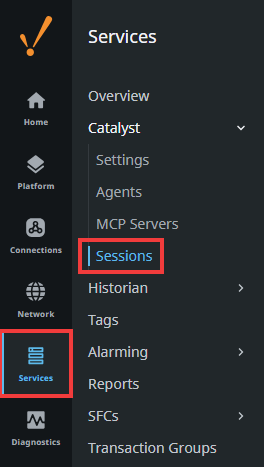
Both current and recently active sessions can be viewed on this page.
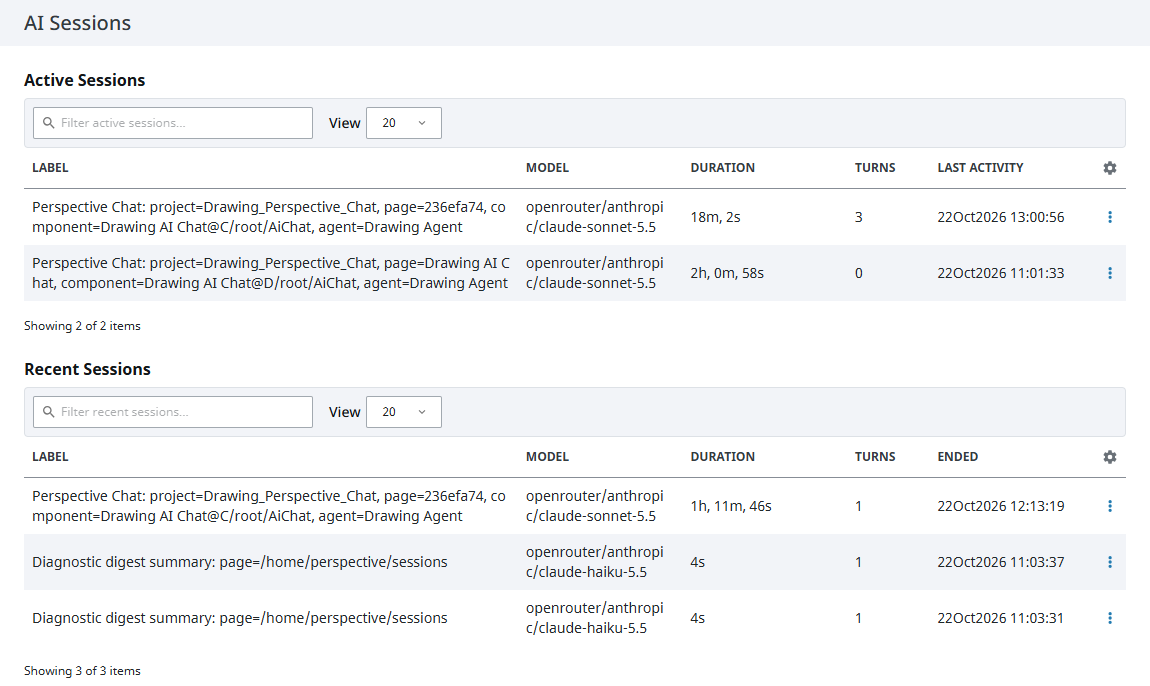
The Catalyst Sessions page will display the following information:
- Label: The name of the AI agent and where the AI session originates from.
- Model: The AI model used for the specified session.
- Duration: How long the AI session ran for.
- Turns: The number of times the AI session was run.
- Last Activity: The timestamp of when the AI session last ran. Available for Active Sessions only.
- Ended: When the AI session was terminated. Available for Recent Sessions only.
Gateway Diagnostic Assistants
One of the main features of the Catalyst Core module is diagnosing Gateway Webpages. The properties set in the Diagnostic Assistant section above will determine what type of AI models to use when using this feature.
Depending on your Diagnostic Assistant Mode setting, the diagnostic summary will look different on your Gateway Webpage. For example, setting the Mode to Auto will cause the webpage to automatically generate the diagnostic summary.
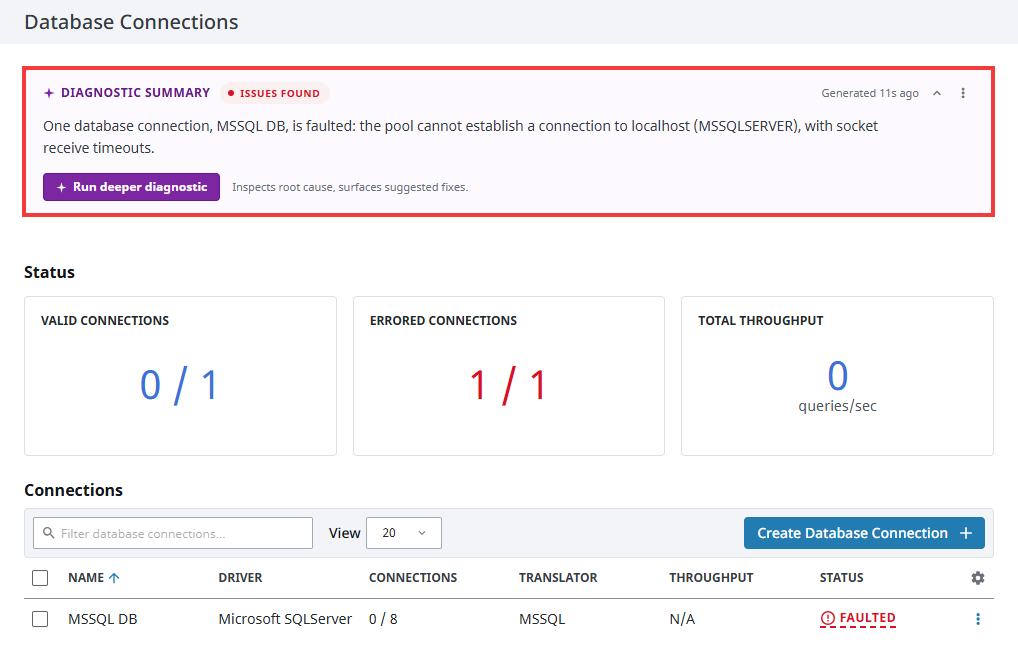
Meanwhile, setting the Mode to On-Demand will provide a manual button to click to generate the diagnostic summary.
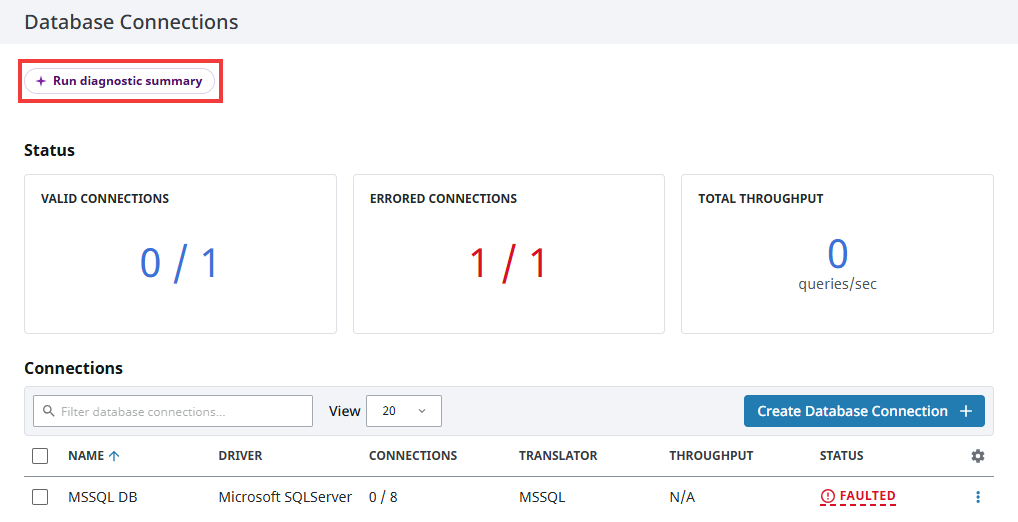
After the diagnostic summary is generated, there are a few actions you can take. Clicking on the caret on the top right will collapse the diagnostic summary, and clicking the three dots menu will provide three additional options:
- Refresh: Re-runs the diagnostic summary.
- Export Summary Context: Exports the diagnostic summary as a Markdown (.md) file. This will contain information such as the Gateway Webpage the summary originated from, the Ignition version, when the summary was generated, and relevant error messages.
- Settings: Takes you to the Catalyst Settings page.
You can also click the Run deeper diagnostic button to get more information about any issues you are running into on the webpage. The deeper diagnostic will generate an in-depth summary of the issues afflicting your subsystem, as well as suggest potential fixes.
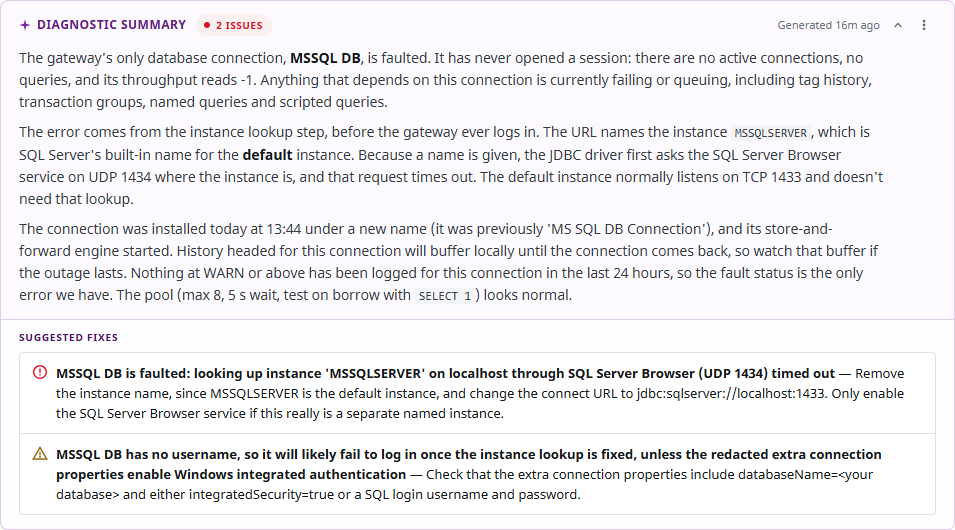
Currently, Diagnostic Assistants are available for the following Gateway pages:
- Perspective Sessions
- Store & Forward
- Database Connections
- OPC UA Connections
- Tag Providers
- Event Streams
- Running Scripts
- Gateway Scripts
- Threads