Catalyst Agent
The Catalyst Agent module expands AI capabilities available for use within Ignition by allowing user-created AI agents and utilizing the Model Context Protocol (MCP). MCP is an open standard protocol that allows MCP clients to connect to MCP servers and use their accessible tools. Custom agents can then be created to query data and call external services. The module implements MCP using the streamable HTTP transport layer.
User-created agents within Ignition and MCP servers can both use the same tools, but function independently from each other.
The added MCP features are configured throughout the Gateway Connections and Services sections, as well as the Designer Catalyst Agent workspace based on the funcitonality they leverage:
- Agents: Provides a structured framework for users to build and run AI agents inside Ignition.
- MCP Connections: Establishes access with external MCP servers.
- MCP Servers: Allows users and external Agentic AI tools with proper permissions to access Ignition data through configured tools.
- Tools: Allow users to define a script to run when invoked from an AI agent.
The Catalyst Agent module requires the Catalyst Core module to be installed on the same Gateway. Additionally, at least one model provider must be configured to use any Catalyst Agent module features.
Agents
Agents are a powerful new primitive added by the Catalyst Agent module. An agent is ultimately a set of instructions, provided within the system prompt, paired with a set of fixed, deterministic capabilities, provided by configured tools. By combining these building blocks with an LLM, a simple natural language prompt can be supplied and result in any number of output actions.
Agents are callable from the system.ai namespace, and they can be exposed to users through the Perspective AI Chat component. Agents are created and configured by selecting a model provider, defining its behavior, and setting permissions.
To create an agent:
-
Navigate to Services > Catalyst > Agents.
-
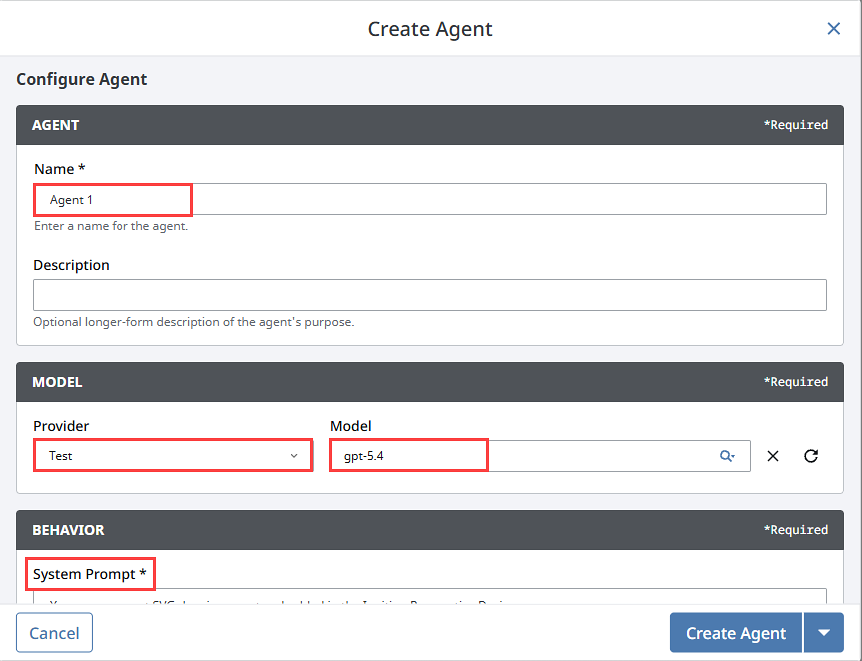
Click Create Agent.
-
Fill in the following fields:
- Name: Enter a name for the agent.
- Provider: Select the needed model provider from the dropdown.
- Model: Select or enter the model name.
- System Prompt: Enter a description for the agent's purpose and how it should accomplish its tasks.
- Permissions: Select the security levels that must be met to allow access to this agent. Make sure to confirm if users must belong to at least one of the selected levels or all of the selected levels.
-
Click Create Agent.
MCP Connections
MCP connections give user-defined agents access to tools from third party MCP servers, such as Figma, Slack, Google Docs, and more. Established connections allow you to provide tools from the external MCP servers to your Ignition custom agents.
To create an MCP connection:
-
Navigate to Connections > Catalyst > MCP Connections.
-
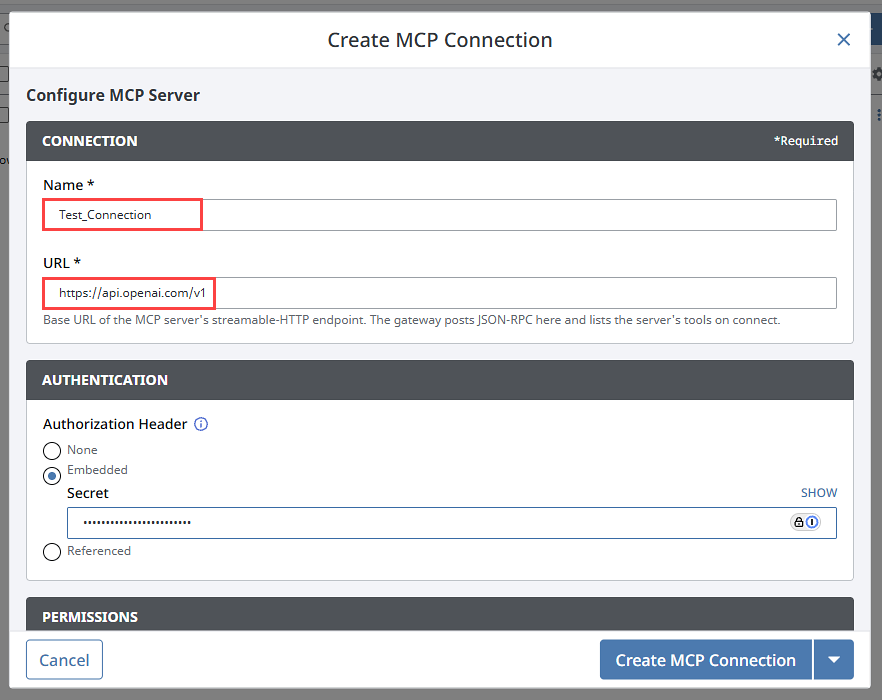
Click Create MCP Connection.
-
Fill in the following fields:
- Name: Enter the external MCP Server name.
- URL: Enter the external URL of the MCP server's streamable-HTTP endpoint.
- Authentication: Select what form of authentication is sent as the Authorization Header on every request. If a custom header is required, select Add Header under the Advanced settings section.
- Permissions: Select the security levels that must be met to allow access to this connection. Make sure to confirm if users must belong to at least one of the selected levels or all of the selected levels.
-
Click Create MCP Connection.
MCP Connection Settings
Connections
| Setting | Description |
|---|---|
| Name | The name of the MCP connection. |
| URL | The base URL of the external MCP server's streamable-HTTP endpoint. The Gateway posts JSON-RPC here, and lists the server's tools when connected. |
Authentication
| Setting | Description |
|---|---|
| Authentication | Sent as the Authorization Header on every request. Be sure to include the scheme, for example Bearer <token>. Choose None if the server needs no authorization, or use Custom Headers if the server expects a different header. Refer to your MCP server’s documentation for more details on authentication requirements. |
Permissions
| Setting | Description |
|---|---|
| Permissions | The security levels required for agent access. If Public, then all callers will be given access permissions. This setting also requires confirmation for whether users need to match at least one or all of the checked levels to receive these permissions. Autonomous callers hold no security levels, so they can only access a connection when Public is selected. Examples of autonomous callers include timer scripts, tag events, and alarm pipelines. |
Advanced
| Setting | Description |
|---|---|
| Request Headers | Adds custom headers for external MCP server authorization if needed. To add a custom header, you will need a header name, the mode, and the value. |
Configure Tools
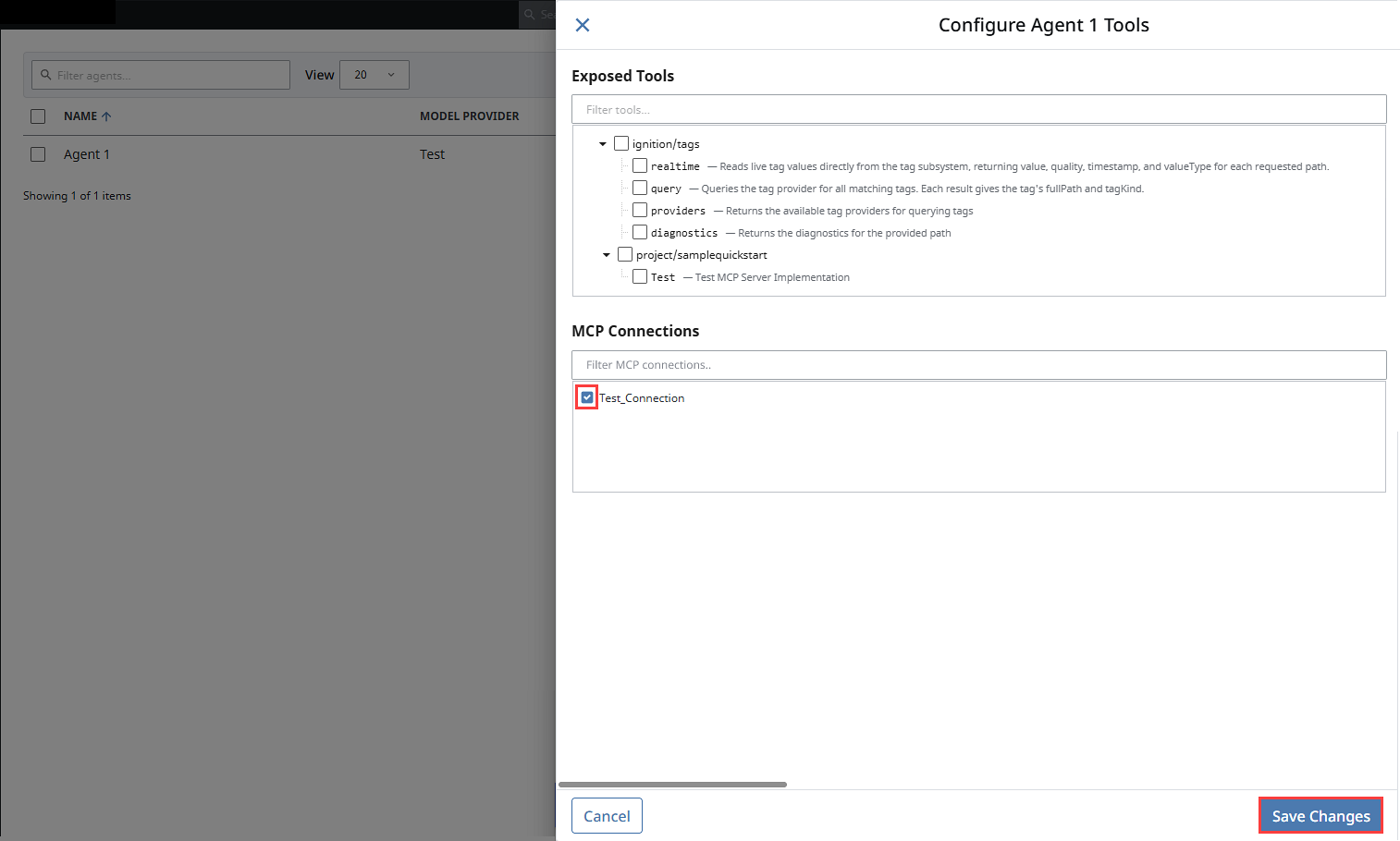
Once created, available Gateway MCP Connections and exposed tools can be selected in the Configure Tools panel. You can give agents access to the tools created in the Designer, or external tools provided by Gateway MCP Connections.
To configure tools:
-
Navigate to Services > Catalyst > Agents.
-
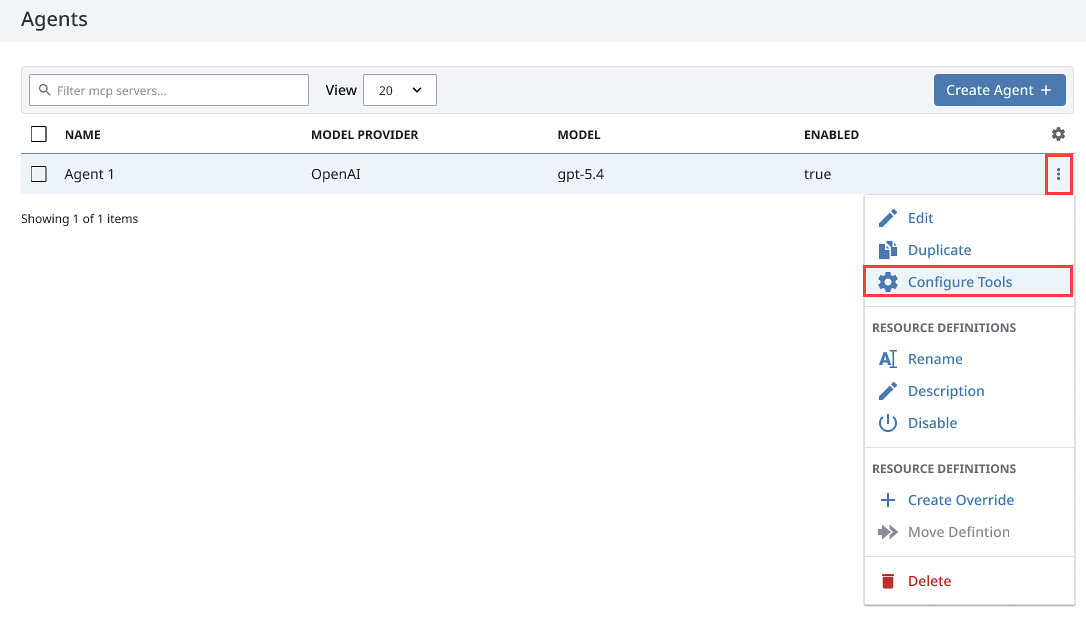
Expand the three dots menu for the desired agent and select Configure Tools.
-
Fill in the checkboxes for any tools or MCP connections you want to the agent to use.
-
Click Save Changes.
If the configured tools impact the system prompt, select Edit from the agent's three dots menu to update it.
Agent Settings
General
| Setting | Description |
|---|---|
| Name | The name of the agent. |
| Description | An optional description of the agent's purpose. |
Model
| Setting | Description |
|---|---|
| Model Provider | The model provider to use for the agent. |
| Model | The name for the model provider. |
Behvior
| Setting | Description |
|---|---|
| System Prompt | Primes the model for the agent's role. The field size can be expanded by clicking on the lower right corner and pulling down. |
| Max Turns Per Invocation | Maximum number of model turns (tool-calling rounds) per invocation. A single turn may run several tools at once, so this limits rounds, not individual tool calls. The run stops if the model needs more turns than this. Default is 20. |
Permissions
| Setting | Description |
|---|---|
| Permissions | The security levels required for agent access. If Public, then all callers will be given access permissions. This setting also requires confirmation for whether users need to match at least one or all of the checked levels to receive these permissions. Autonomous callers hold no security levels, so they can only access a connection when Public is selected. Examples of autonomous callers include timer scripts, tag events, and alarm pipelines. |
MCP Servers
MCP servers allow Ignition external LLMs to invoke actions within Ignition. External MCP clients, such as Claude, Codex, and Visual Studio Code can establish a connection to the Gateway over HTTP and call the tools provided in each MCP server definition.
To create an MCP server:
-
Navigate to Services > Catalyst > MCP Servers.
-
Click Create MCP Server.
-
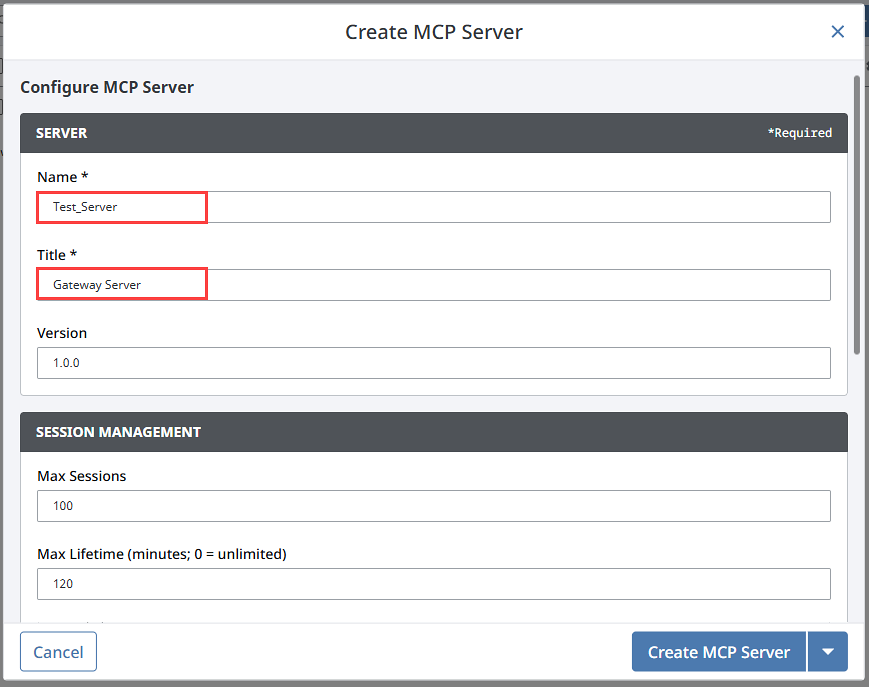
Enter a Name and Title for the MCP server. The Name dictates what will be stored by Ignition in the filesystem and provided to the MCP client, and Title will be the user facing label displayed in the end user’s client application.
-
Select the Permissions requirements that must be met to allow access to this agent. Make sure to confirm if users must belong to at least one of the selected levels or all of the selected levels.
-
Click Create MCP Server.
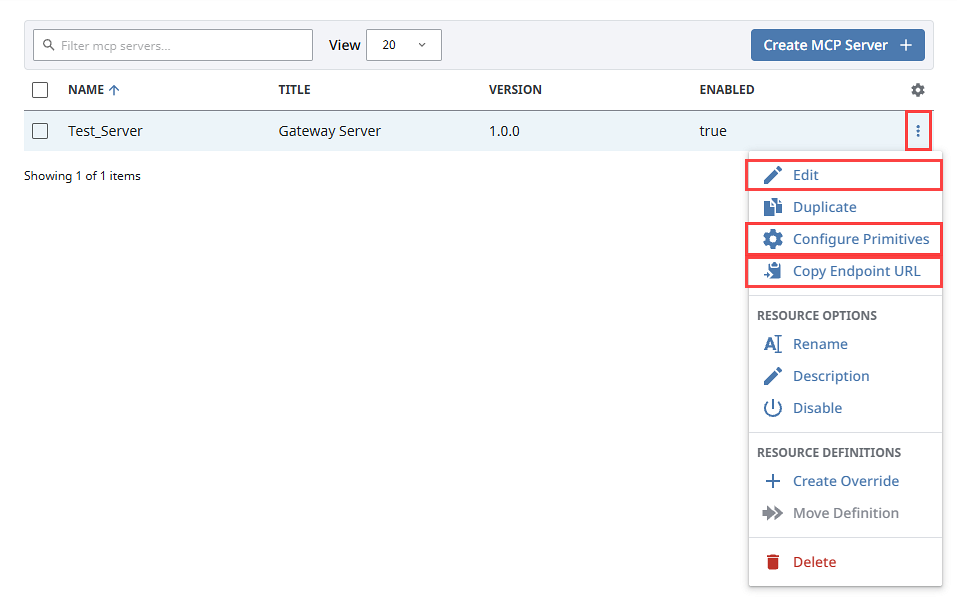
The MCP Server will now be listed on the main MCP Servers page. You can now expand the three dots menu to Edit or Configure Primitives as needed. Then, select Copy Endpoint URL to share with an external MCP client.
Configure Primitives
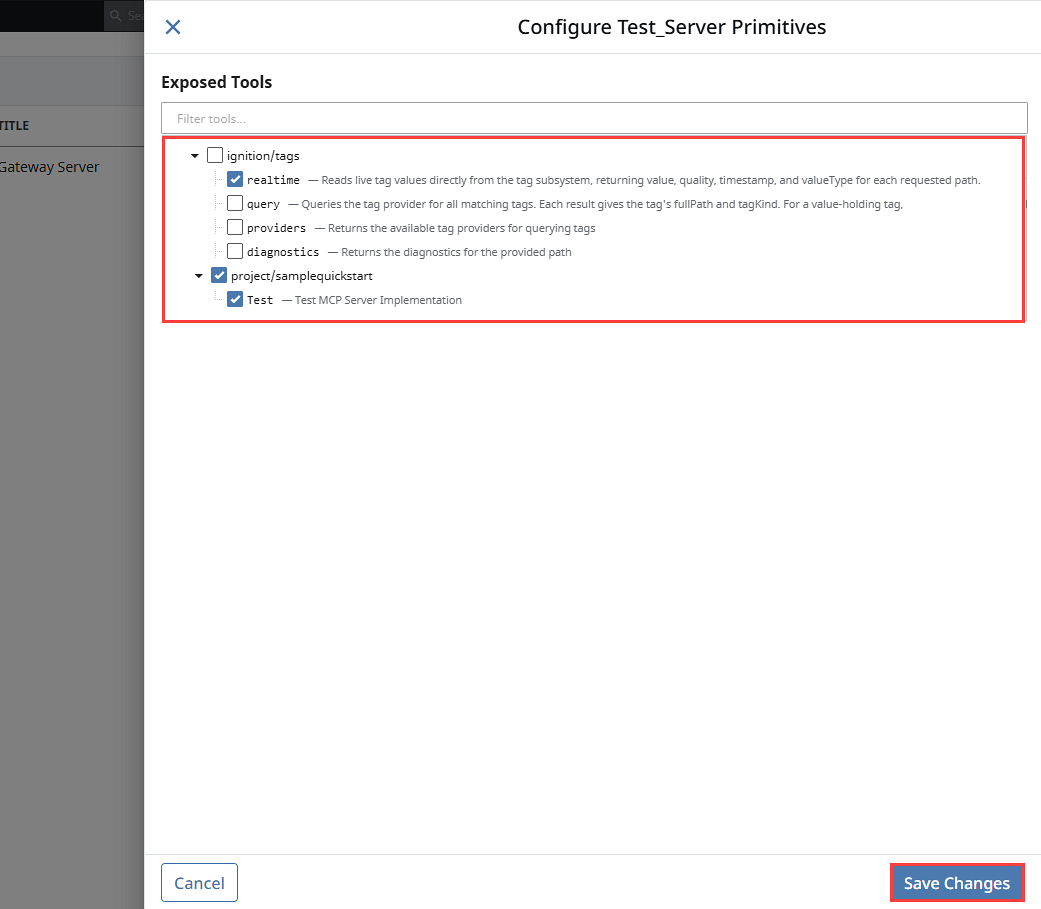
The Configure Primitives panel lists the custom and built-in Designer tools. Selecting these tools and saving changes will expose these tools to connected MCP clients. Custom tools are authored in the Designer, and are listed in the Configure Primitives panel by project name. Built-in tools provided by Inductive Automation are also available under the ignition grouping.
MCP Server Properties
Server
| Setting | Description |
|---|---|
| Name | The internal name of the MCP server that is saved in the filesystem and contained in the generated endpoint URL. |
| Title | The title of the MCP server that will be displayed to external users. |
| Version | An optional server version. Use this setting to indicate a version contract to users connecting to your server. Default is 1.0.0 |
Session Management
| Setting | Description |
|---|---|
| Max Sessions | The max amount of sessions allowed. Default is 100. |
| Max Lifetime | The max lifetime in minutes. If 0 is entered, the max lifetime will be unlimited. Default is 120. |
| Idle Timeout | The idle timeout in minutes. If 0 is entered, the idle timeout will be unlimited. Default is 30. |
Permissions
| Setting | Description |
|---|---|
| Permissions | Check the security levels required for MCP server and tool access. If Public, then all API tokens used by external MCP clients with the protocol endpoint will be given access permissions. This setting also requires confirmation for whether users need to match at least one or all of the checked levels to receive these permissions. |
Catalyst Agent Tools in the Designer
The Catalyst Agent module adds a Catalyst Agent workspace to the Designer within the Project Browser. See the Catalyst Designer Interface page for more information on authoring Catalyst Agent tools.