Perspective - Report Viewer
Component Palette Icon:

Description
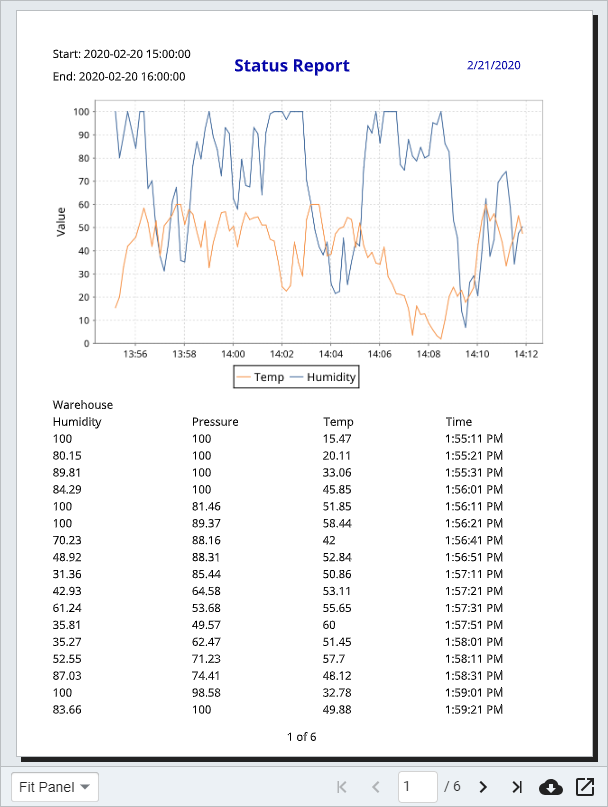
The Report Viewer component allows embedding reports from the Reporting Module into a Perspective views. The Reporting Module must be installed to use the Report Viewer component. To configure the Report Viewer, you must first create a report and provide the Path of that report in the 'source' property of the component.
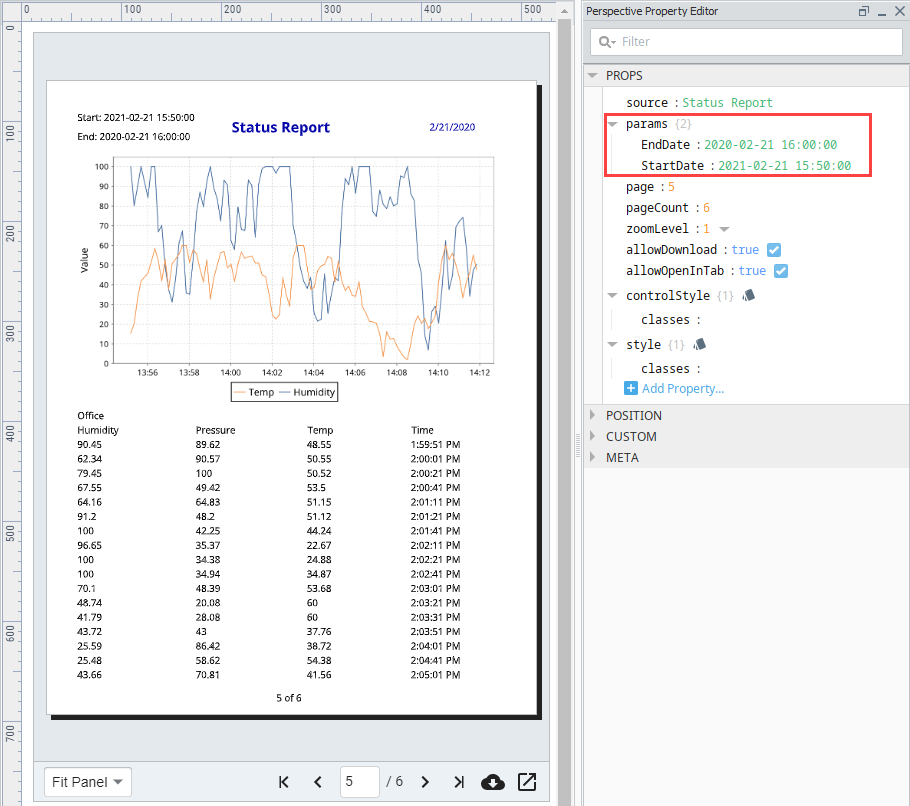
You can specify any parameters that you are using in the report as values under the params property, but the parameter names must match. The values specified will be used instead of the default report parameters.
Interface Elements

| Icon | Name | Description |
|---|---|---|
 | Zoom | Controls the zoom level of the PDF view. |
 | Pager | Displays the current page and allows the user to increment or decrement pages. |
 | Download | Downloads the report. After clicking Download, the button is disabled until the user either saves the report or cancels the download. |
 | Popout | Opens the report in a new window. |
Properties
Most Properties have binding options. For more information on Bindings, see Types of Bindings in Perspective. This section only documents the Props Category of properties. The other Categories are described on the Perspective Component Properties page.
| Name | Description | Property Type |
|---|---|---|
| source | Path of the report (case sensitive) from the Reporting Module that this component should display. For example, your Report source path might be: "Folder/ReportName". Right-click on the report in the Project Browser to Copy Path. | value: string |
| params | An object that can be enhanced with report parameters to use in a report. | object |
| page | The current page number displayed with the report. This property is updated as the pages are viewed. | value: numeric |
| pageCount | A read-only property that provides the total number of pages in the report. | value: numeric |
| zoomLevel | A number representing the desired zoom level as a percentage of the report width. The Fit Panel option is simply 1 as opposed to a percentage value. | value: numeric |
| allowDownload | If set to 'true,' an icon will be added to the control bar at the bottom of the component that will download the report as a PDF file when clicked. The value of this property is always treated as "false" when the report viewer component is viewed from the iOS and Android Perspective Mobile apps. | value: boolean |
| downloadFilename | A filename used for the report if downloaded. Filename will default to the name of the report if this property is left blank. | value: string |
| allowOpenInTab | If set to 'true,' an icon will be added to the control bar at the bottom of the component that will open a temporary PDF file in a new tab. The value of this property is always treated as "false" when the report viewer component is viewed from Perspective Workstation, as well as the iOS and Android Perspective Mobile apps. | value: boolean |
| controlStyle | An object containing CSS style properties that are applied to the control bar and controls across the bottom.
| object |
| style | An object containing CSS style properties that are applied to the background display of the component. | object |
Component Scripts and Events
Further component interaction and functionality can be configured for all components through scripting and event actions. Right-click on the component or select Components from the Designer menubar to access the configuration popups for both of these options:
- Configure Events: Accesses the Event Configuration popup where you can configure actions to run in response to events to make the component dynamic. The Events Configurations page shows how to configure events and actions on a Perspective component.
- Configure Scripts: Accesses the Script Configuration popup where custom methods and message handlers can be added. The Scripting in Perspective section details scripting fundamentals, creating custom methods, and using message handlers.
Example
Configuring the Report Viewer
The Report Viewer component provides an easy way to view and print reports in a Perspective View. Let's configure the Report Viewer for a report.
This example requires that you already have a report created in your Gateway. You can learn more about creating reports here.
-
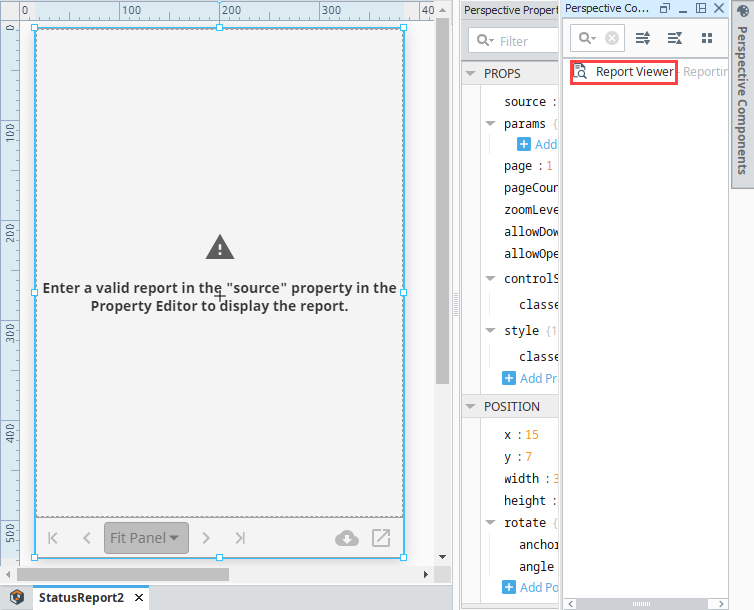
Drag a Report Viewer component into a view.
-
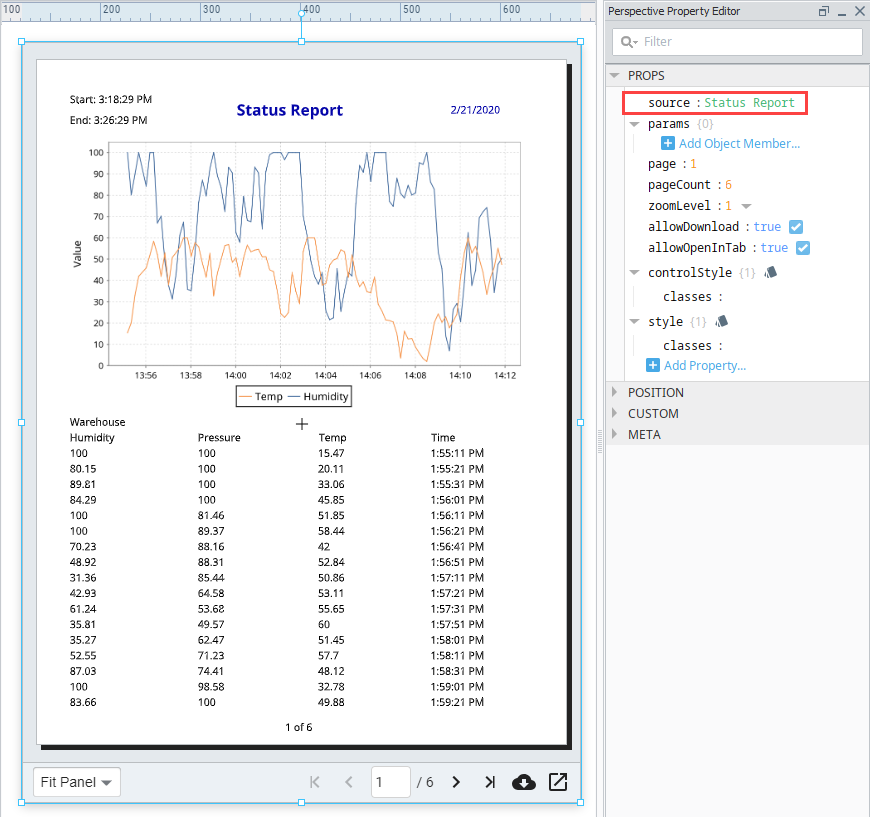
Enter the Path of the report you want to view in the 'source' property of the Property Editor. The data from your report will immediately load into the Report Viewer.
infoYou can right-click on any report in the designer Project Browser to Copy the full Path of the report.
-
Parameters added during report creation are provided as properties in the Report Viewer. Add them under the 'params' object. (The example below uses the EndDate and StartDate parameters). The parameter names must match exactly to the parameters in your Report Resource, and will override any default values set in the Report Resource.